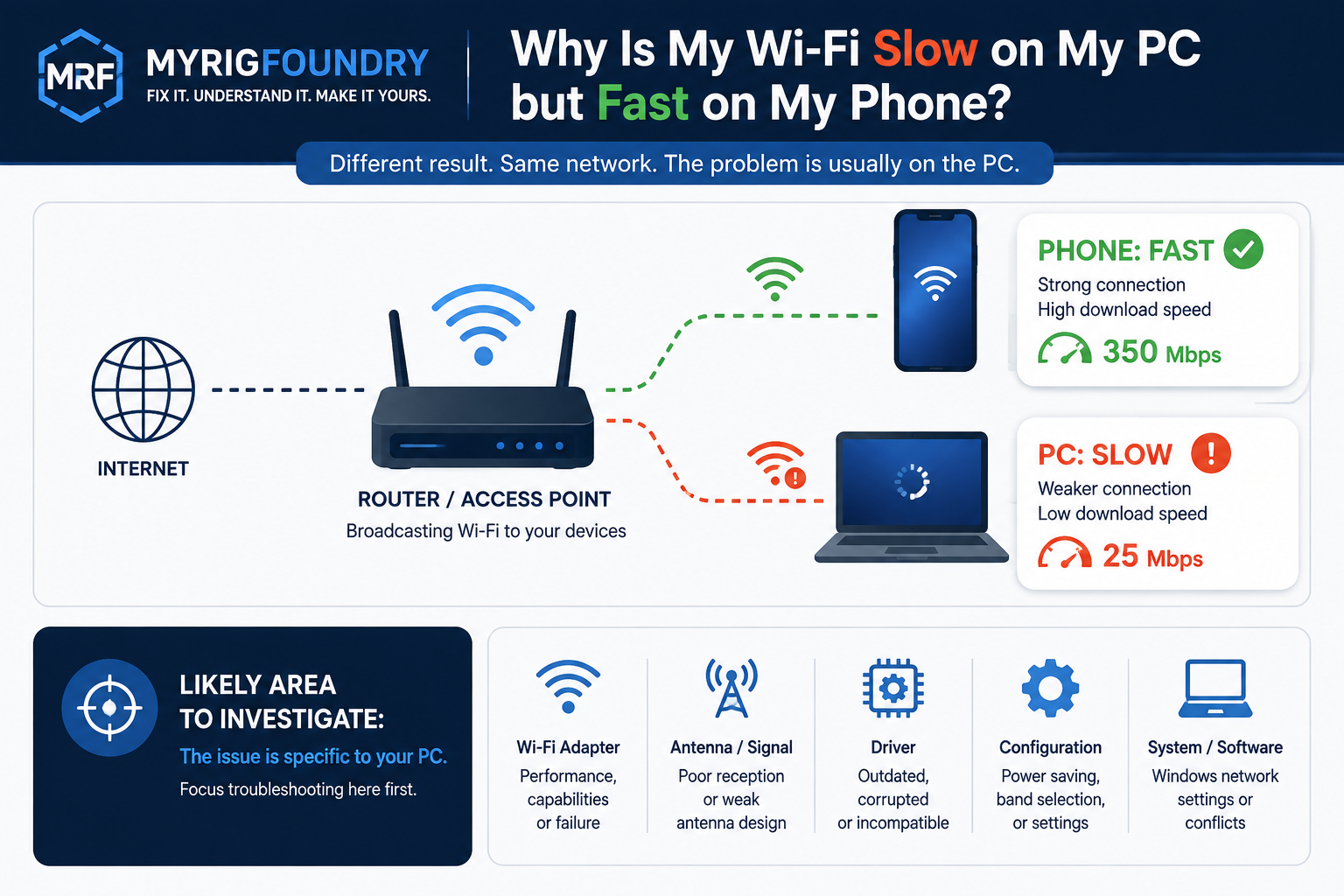
If your phone gets normal Wi-Fi speeds while your PC is much slower on the same network, start by troubleshooting the PC before assuming your internet connection is the problem.
Common causes include poor signal at the PC, antenna placement, the Wi-Fi band being used, driver problems, power-saving settings, software using bandwidth in the background, or limitations of the PC’s Wi-Fi adapter.
First, make sure the comparison is fair
Before changing anything, make sure you are comparing the two devices under similar conditions.
Connect the phone and PC to the same Wi-Fi network, place them reasonably close to each other, and run the same speed test on both.
Also check that the PC is not downloading a game, syncing cloud files, installing updates or running another bandwidth-heavy task during the test.
A small difference between devices is normal. Phones and PCs can use different Wi-Fi hardware, antennas and wireless standards.
But if your phone gets hundreds of Mbps while your PC gets only a fraction of that speed under similar conditions, the difference is large enough to investigate.
Quick diagnosis
Before changing advanced settings, use a few simple tests to narrow down the problem.
| What you find | What it suggests |
|---|---|
| Phone fast, PC slow | Focus troubleshooting on the PC first |
| PC becomes fast near the router | Signal, distance, obstacles or antenna placement may be involved |
| Ethernet fast, Wi-Fi slow | Focus on the PC’s wireless connection |
| Phone and PC are both slow | Investigate the router or internet connection too |
| PC stays slow beside the router | Adapter, driver, configuration or software becomes more suspicious |
These results are clues rather than definitive diagnoses. The goal is to eliminate possibilities instead of changing random settings.
1. Check the Wi-Fi signal
Start with the simplest possibility: the PC may simply have a worse wireless connection than your phone.
Look at the Wi-Fi signal shown by Windows.
If the signal is weak, test the PC closer to the router if possible and run the speed test again.
A large improvement near the router suggests that distance, obstacles, interference, antenna placement or the wireless hardware itself may be affecting the connection.
If the PC remains dramatically slower even with a strong signal close to the router, continue troubleshooting.
2. Try another Wi-Fi band
Many routers can provide Wi-Fi on more than one frequency band, commonly 2.4 GHz and 5 GHz.
If another band is available, try connecting the PC to it and repeat your speed test.
5 GHz can provide higher speeds under suitable conditions, while 2.4 GHz can often provide better range. Walls, distance, interference, router configuration and the capabilities of the Wi-Fi adapter can all affect the result.
Do not treat 5 GHz as automatically “better.”
Use switching bands as a diagnostic test.
If changing bands causes a major improvement, you have learned that the wireless environment, band selection or adapter capabilities are likely involved.
3. Check the PC’s Wi-Fi antennas
This step is especially important for desktop PCs.
Many motherboards and PCIe Wi-Fi cards use external antennas connected to the back of the computer.
If your PC is supposed to use external Wi-Fi antennas, make sure they are actually installed and securely connected.
If repositioning the antennas causes a significant improvement, reception was likely contributing to the problem.
4. Identify your Wi-Fi adapter
Before downloading drivers or changing adapter-specific settings, find out which wireless adapter your PC actually uses.
In Windows:
- Open Device Manager.
- Expand Network adapters.
- Find the wireless or Wi-Fi adapter.
- Open Properties.
- Check the Driver tab to see information about the installed driver.
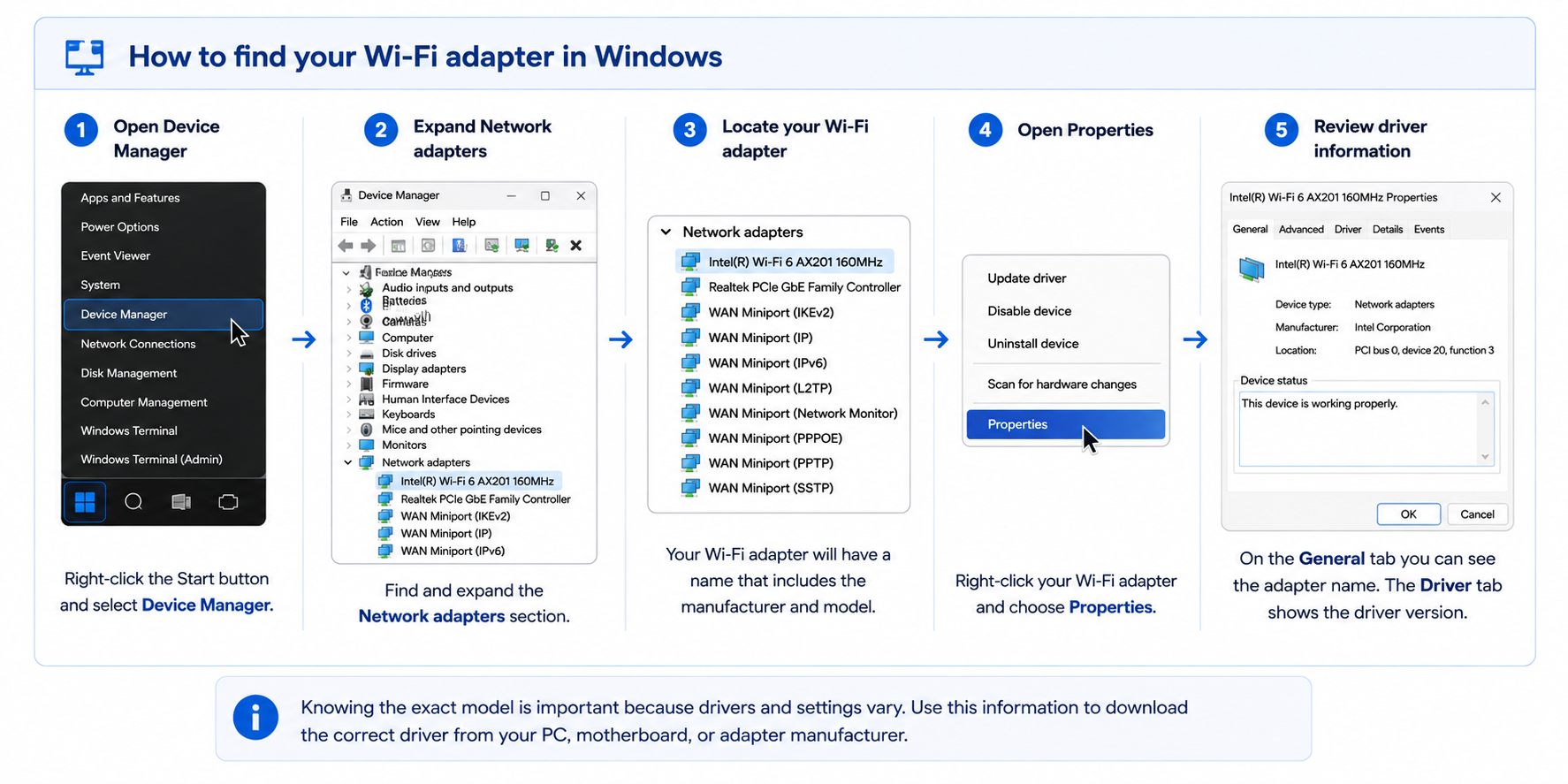
Knowing the exact model matters because laptops, motherboards, USB Wi-Fi adapters and PCIe Wi-Fi cards can use completely different wireless hardware.
Write down the adapter model and current driver version before moving on.
5. Check the Wi-Fi driver
A driver problem can affect how Windows communicates with the Wi-Fi adapter.
This is particularly worth checking if the slowdown appeared after a Windows update, clean installation, hardware change or driver update.
Once you know the exact adapter model, check the support page for your PC, laptop, motherboard or Wi-Fi adapter manufacturer.
If you have an Intel wireless adapter, Intel also provides tools and documentation for identifying the adapter and its installed driver version.
Avoid random third-party “driver updater” websites. Use the hardware or system manufacturer’s official support resources whenever possible.
After changing a driver, restart the PC if required and repeat the same speed test.
6. Test Wi-Fi power management
Windows can use power-management features with network adapters.
As a troubleshooting test:
- Open Device Manager.
- Expand Network adapters.
- Open the properties for your Wi-Fi adapter.
- Look for a Power Management tab.
- If available, temporarily disable the option that allows the computer to turn off the device to save power.
Not every adapter or system exposes exactly the same options.
After changing the setting, test the connection again.
If there is no improvement, you can restore the original setting.
7. Forget the Wi-Fi network and reconnect
Before making more disruptive changes, try rebuilding the saved Wi-Fi connection.
In Windows, open your Wi-Fi settings, find the saved network and choose Forget.
Then reconnect to the network and enter the Wi-Fi password again.
Repeat your speed test afterward.
This is a simple troubleshooting step and is less disruptive than resetting all Windows network settings.
8. Run the Windows network troubleshooter
If the obvious causes have not solved the problem, Windows has built-in network troubleshooting tools.
On Windows 11, Microsoft recommends starting the automated Network and Internet troubleshooter through the Get Help app for connection problems.
Run the troubleshooter and follow the recommendations it provides.
Afterward, repeat the same speed test so you can tell whether anything actually changed.
9. Compare Wi-Fi with Ethernet
If your PC has an Ethernet port and you already have a suitable Ethernet connection available, a wired test can provide an extremely useful clue.
Connect the PC directly to the router and repeat the speed test.
If Ethernet is fast while Wi-Fi remains slow, the PC and internet connection are capable of much better performance.
That narrows the investigation toward the wireless side of the connection.
If Ethernet is also unusually slow, the problem may be broader than Wi-Fi alone.
10. Check for background network activity
Before blaming the Wi-Fi adapter, make sure Windows or another application is not consuming the connection.
Open Task Manager and check whether an application is using a large amount of network bandwidth.
Game downloads, cloud synchronization, Windows updates and other background transfers can make a speed test or normal browsing feel much slower.
Pause the transfer if appropriate and test again.
If the connection immediately returns to normal, the Wi-Fi hardware may not have been the problem at all.
When the Wi-Fi adapter might actually be the problem
Do not immediately buy a new Wi-Fi adapter just because your PC is slower than your phone.
Hardware becomes more suspicious after other explanations have been eliminated.
For example, investigate the adapter more closely if:
- other devices are consistently fast on the same network;
- the PC remains dramatically slower close to the router;
- signal strength appears good;
- antenna placement has been checked;
- the appropriate driver has been checked;
- background network activity is not responsible; and
- Ethernet performs normally on the same PC.
The adapter may not necessarily be faulty.
An older wireless adapter can simply support older Wi-Fi standards, fewer spatial streams or lower connection speeds than a newer phone.
Check the specifications of the exact adapter before deciding that replacement hardware is necessary.
What about Network Reset?
Windows also includes a Network reset option, but this should not be one of your first troubleshooting steps.
Microsoft recommends treating Network Reset as a last step after simpler troubleshooting has failed.
A Network Reset removes installed network adapters and their settings. After the PC restarts, Windows reinstalls the adapters and resets their settings to defaults.
It can also affect networking software such as VPN clients or virtual network adapters.
For that reason, use it only when you understand what will be reset and the earlier troubleshooting steps have not solved the problem.
What to check first
If you want the shortest version of this guide, use this order:
- Compare the phone and PC under similar conditions.
- Check for background downloads on the PC.
- Check the PC’s Wi-Fi signal.
- Test another available Wi-Fi band.
- Check external antennas if the PC uses them.
- Identify the exact Wi-Fi adapter.
- Check the appropriate driver.
- Test power-management settings.
- Forget and reconnect to the Wi-Fi network.
- Run Windows network troubleshooting.
- Compare Wi-Fi with Ethernet if available.
- Consider Network Reset only after simpler options fail.
Change one thing at a time and repeat the same test.
That is much more useful than changing several settings at once because when performance changes, you have a better chance of knowing what actually caused the improvement.
Official resources
For additional troubleshooting and hardware-specific information, these official resources may help: