Quick answer
If your PC stopped booting immediately after enabling AMD EXPO, do not assume that the RAM, CPU or motherboard suddenly failed.
EXPO applies an overclocked DDR5 memory profile. After enabling it, an AM5 system may need to retrain the memory, and a configuration that works at default memory settings may not necessarily remain stable with the EXPO profile enabled.
First give the system time to complete its initial memory initialization. If it consistently refuses to boot, the next goal is to return the memory configuration to default settings and determine whether EXPO itself triggered the problem.
Enabling EXPO can make an otherwise perfectly working PC suddenly behave very differently.
You might enable the profile in the BIOS, save the settings and then see:
- a black screen
- a DRAM motherboard light
- a much longer boot than usual
- one or more automatic restarts
- the PC apparently stuck before Windows loads
- Windows eventually loading after an unusually long delay
- the system booting but becoming unstable later
That can look like a hardware failure.
But the timing provides an important clue.
If the PC worked normally before EXPO and the problem appeared immediately after enabling it, investigate the memory configuration before assuming that a component died.
What EXPO actually changes
AMD EXPO stands for Extended Profiles for Overclocking.
It is designed to make DDR5 memory overclocking easier on supported AMD Ryzen systems.
A memory kit may contain an EXPO profile with settings intended to run the memory at a higher performance level than its default configuration.
Depending on the profile and platform, this can involve parameters such as:
- memory frequency
- memory timings
- memory voltage
- related memory configuration values
For example, a DDR5 kit advertised for a higher memory speed may initially operate using more conservative default settings.
Enabling its EXPO profile tells the system to attempt the profile stored for that memory kit.
That is convenient, but it is still important to understand one thing:
EXPO is memory overclocking.
It should not be treated as a guarantee that every CPU, motherboard, BIOS version and memory configuration will behave identically.
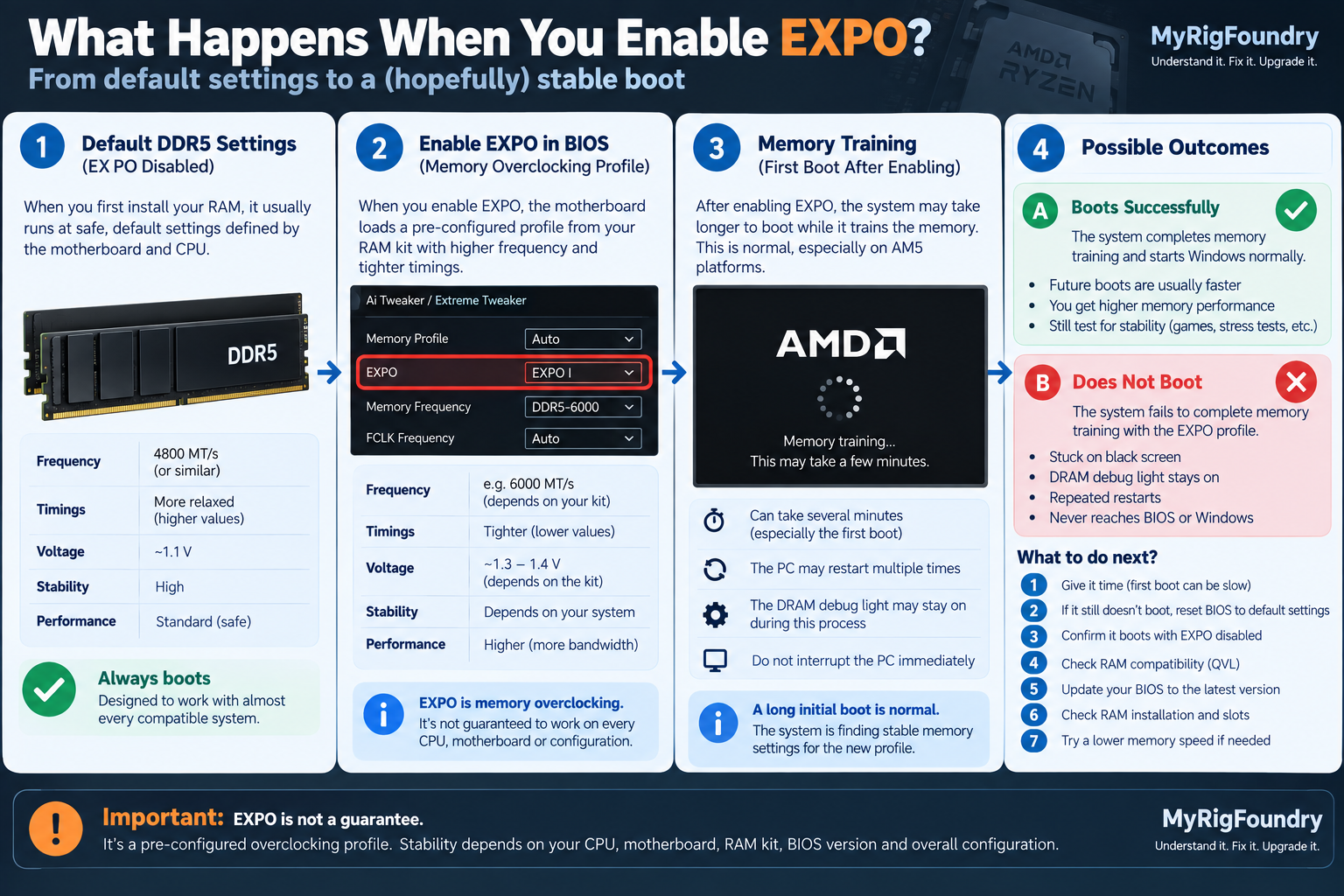
First, do not interrupt the PC immediately
A longer boot immediately after changing memory settings does not automatically mean the PC has failed to boot.
Modern DDR5 platforms may perform memory initialization and training when memory configuration changes.
During this process, the system may remain on a black screen longer than you normally expect.
You may also see the motherboard’s DRAM indicator remain illuminated while the system works through memory initialization.
If you have just enabled EXPO for the first time, give the motherboard time to finish before repeatedly turning the system off.
The exact behavior and time required can vary between motherboards, BIOS versions and memory configurations.
If the system eventually reaches the BIOS or Windows and subsequent boots become faster, the initial delay may have been related to the new memory configuration being initialized.
A long first boot and a permanent no-boot are different problems
This distinction matters.
If the PC:
eventually boots
then you may be observing memory training or unusually long memory initialization.
If the PC:
never successfully reaches the BIOS or operating system
then the EXPO configuration may not be working correctly with the current system.
Do not treat those two situations as the same problem.
Before changing anything else, observe whether the motherboard eventually progresses beyond the DRAM stage.
If the PC eventually boots, test stability
Successfully reaching Windows does not automatically mean the memory configuration is completely stable.
Watch for symptoms such as:
- random application crashes
- game crashes
- blue screens
- unexpected restarts
- freezing
- errors during memory-intensive workloads
- boot problems that return later
If those symptoms appeared only after enabling EXPO, the memory configuration remains an important suspect.
The goal is not simply to make the computer reach Windows once.
The system should remain stable during normal use.
If it never boots, return the BIOS to default memory settings
If the computer repeatedly fails to boot after enabling EXPO, the next goal is to restore a known-good memory configuration.
Motherboards provide methods for resetting BIOS/UEFI settings when a configuration prevents normal startup.
The exact procedure depends on the motherboard.
Use the manual for your exact motherboard model and follow the manufacturer’s documented BIOS-reset or CMOS-clear procedure.
After the BIOS settings have been restored, EXPO should no longer be applied unless you enable it again.
If the computer boots normally with default memory settings, that is an extremely useful diagnostic result.
It suggests that the problem is associated with the changed memory configuration rather than a PC that suddenly became incapable of booting at all.
Do not repeatedly force EXPO back on
If restoring default settings makes the computer work again, do not immediately enable the exact same profile five more times.
You already learned something important:
default memory settings boot → EXPO configuration does not
That gives you a direction for troubleshooting.
Now investigate why.
Check the exact memory kit
Identify the exact RAM kit installed in the PC.
Do not rely only on something broad such as:
“32 GB DDR5-6000”
Different kits can use different memory configurations even when their advertised capacity and speed look similar.
Record the exact model or part number.
Then check the memory support information provided by the motherboard manufacturer and AMD.
AMD maintains an overclocked memory compatibility list identifying memory kits tested to operate at their rated speed and latency and indicating support for standards such as AMD EXPO.
Your motherboard manufacturer may also provide a memory support or QVL list for the exact board.
A kit missing from a compatibility list does not automatically mean it cannot work.
However, compatibility information can provide useful evidence when diagnosing a system that stops booting specifically after memory overclocking is enabled.
Check the motherboard BIOS version
Memory compatibility and behavior can change with BIOS updates.
Visit the official support page for your exact motherboard model.
Check:
- your currently installed BIOS version
- newer stable BIOS versions
- release notes
- memory compatibility changes
- relevant AGESA updates
- EXPO-related changes when mentioned
Do not install a BIOS intended for a different motherboard.
Even boards with very similar names can use different firmware.
If you decide that a BIOS update is appropriate, follow the motherboard manufacturer’s instructions exactly.
A firmware update should be treated more carefully than an ordinary Windows application update.
BIOS updates can matter for EXPO
This is not just theoretical.
Motherboard BIOS updates can include changes related to memory compatibility, AGESA and EXPO support.
That means a system running an older BIOS may behave differently from the same hardware running newer firmware.
However, do not assume that “update the BIOS” is automatically the solution to every EXPO problem.
First confirm the exact motherboard, current BIOS version and relevant release notes.
Check whether you are using two or four RAM modules
Memory configuration matters.
A system using two DIMMs is not necessarily equivalent to a system using four DIMMs, even if the total memory capacity is the same.
More memory modules can place additional demands on the memory subsystem.
For troubleshooting, record:
- number of installed DIMMs
- capacity of each DIMM
- total memory capacity
- advertised memory speed
- exact memory kit
- motherboard model
- CPU model
That information is far more useful than simply saying:
“EXPO doesn’t work.”
Make sure the RAM is installed in the recommended slots
If you are using two memory modules, verify that they are installed in the slots recommended by the motherboard manufacturer.
Do not assume that any two DIMM slots are equivalent.
Motherboard manuals normally identify the preferred slots for a two-module configuration.
If the modules are installed incorrectly, correct the physical configuration according to the motherboard manual before continuing with memory tuning.
Test default settings before blaming the hardware
A useful comparison is:
EXPO disabled → test
then:
EXPO enabled → test
If the system is consistently stable with EXPO disabled and consistently fails with EXPO enabled, that pattern strongly points toward the memory configuration.
It does not automatically tell you which component or setting is responsible.
Possible factors include:
- the memory profile
- motherboard firmware
- memory compatibility
- the CPU’s memory controller
- DIMM configuration
- aggressive memory speed or timings
- other BIOS settings interacting with the profile
The comparison simply isolates the trigger.
Do not manually change several memory voltages at once
Once people discover that EXPO is related to memory overclocking, it is tempting to start copying BIOS values from forums or videos.
Avoid doing that.
Do not randomly change:
- memory voltage
- SoC-related voltage
- memory controller settings
- multiple timings
- several memory training options
especially all at the same time.
Even if the computer starts afterward, you will not know which change mattered.
You can also introduce instability that is harder to diagnose than the original problem.
For a troubleshooting guide, the better process is:
known-good defaults → one controlled change → test
A lower memory speed can be a useful diagnostic test
If the system works at default settings but fails with the full EXPO configuration, the advertised EXPO speed may be too aggressive for the current combination of hardware and firmware.
An experienced user may test a more conservative memory configuration rather than immediately assuming that the RAM must run at the full EXPO profile.
But treat this as troubleshooting, not as proof that one particular component is defective.
The stable memory speed achievable by a system can depend on several parts of the memory subsystem.
If you are not comfortable manually configuring memory, leaving EXPO disabled while you investigate compatibility and BIOS support is a perfectly reasonable temporary state.
Check whether the system has multiple EXPO options
Some motherboards may expose more than one memory-profile or EXPO-related option.
Do not assume that every option has identical behavior.
Read the motherboard documentation before selecting more aggressive memory presets.
The safest troubleshooting baseline remains the motherboard’s default memory configuration.
Once you know the PC is stable there, additional profiles can be tested individually.
Pay attention to the DRAM debug light
Many motherboards include diagnostic LEDs.
If the DRAM light remains illuminated after enabling EXPO, it provides another clue that the system is having difficulty during memory initialization.
However, the LED alone does not prove that a RAM module is physically defective.
The same indicator can appear while the system is attempting to initialize a memory configuration that it cannot successfully use.
Combine the debug LED with the timing of the problem:
PC worked → EXPO enabled → DRAM light/no boot
is much more informative than the DRAM light by itself.
When the RAM itself becomes more suspicious
An EXPO-related boot problem does not automatically mean defective RAM.
Hardware becomes more suspicious if problems also occur at default memory settings.
Examples include:
- the PC cannot boot reliably with EXPO disabled
- memory errors appear at default settings
- one DIMM consistently prevents startup
- crashes occur even without memory overclocking
- the system cannot detect the expected amount of RAM
- problems persist after BIOS settings are returned to defaults
At that point, the issue is no longer isolated to EXPO.
That changes the troubleshooting direction.
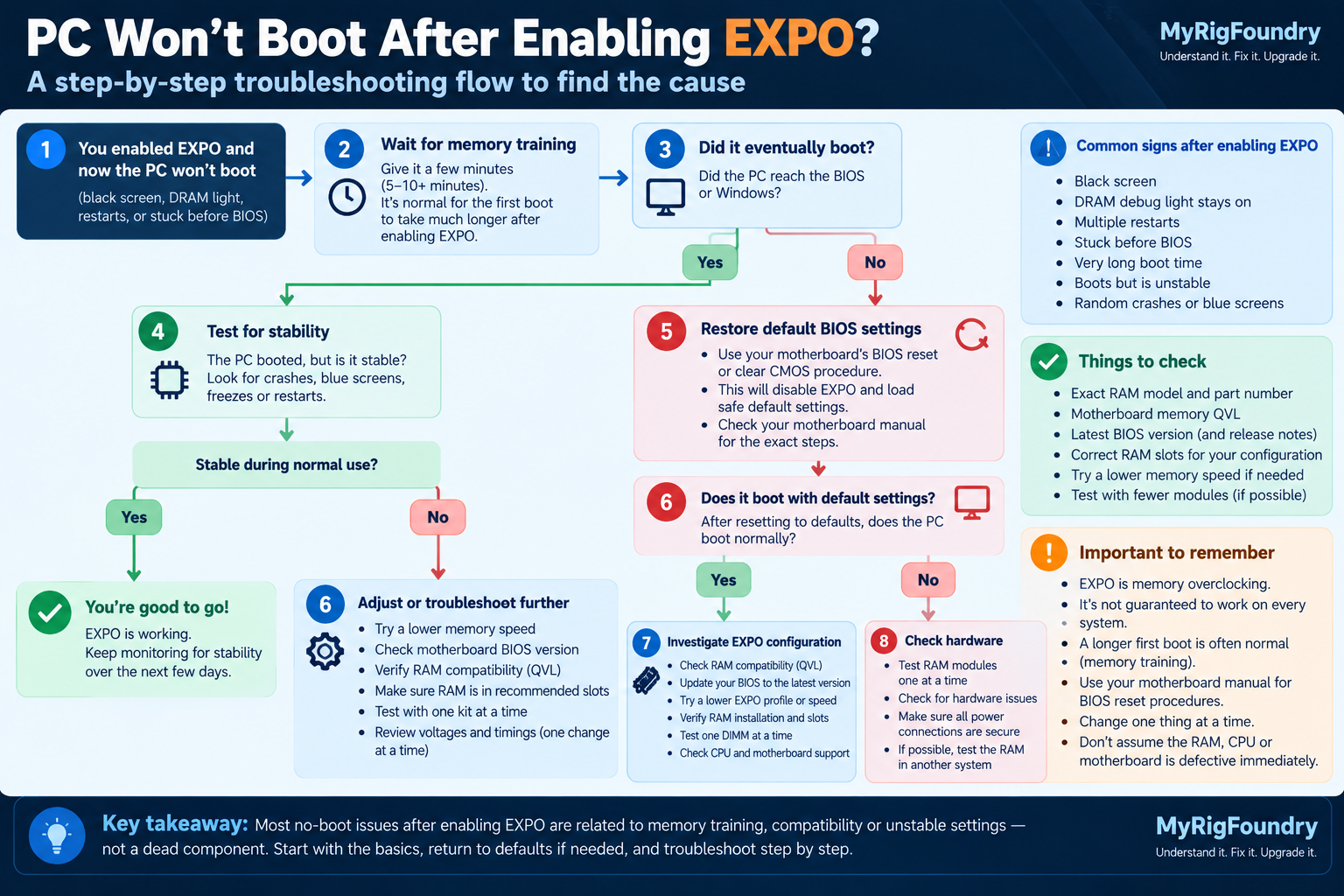
Visual troubleshooting flow
If the system still refuses to boot or becomes unstable after enabling EXPO, use this flow to separate normal memory training from an EXPO configuration problem or a broader hardware issue.
What not to do first
If your PC stops booting after enabling EXPO, avoid immediately:
- replacing the RAM
- replacing the motherboard
- replacing the CPU
- repeatedly power cycling the PC during initial memory training
- changing many memory timings
- copying random voltage settings
- installing firmware for another motherboard
- assuming the DRAM light proves the RAM is dead
Those actions can make a relatively clear problem much harder to diagnose.
The timing already gave you valuable information.
Use it.
What to check first
If you want the shortest troubleshooting path, use this order:
- Confirm that the problem appeared immediately after enabling EXPO.
- Give the system time to complete initial memory training.
- Determine whether it eventually reaches the BIOS or Windows.
- If it consistently does not boot, use your motherboard’s documented procedure to restore default BIOS settings.
- Confirm that the PC boots normally with EXPO disabled.
- Identify the exact RAM kit, CPU and motherboard.
- Check that the RAM is installed in the motherboard’s recommended DIMM slots.
- Check the motherboard’s memory compatibility information.
- Check your BIOS version and relevant motherboard release notes.
- Test stability at default memory settings.
- Only after establishing a stable baseline should you investigate additional memory configurations.
Important: A black screen immediately after enabling EXPO does not automatically mean the PC is damaged. First distinguish normal memory initialization from a configuration that consistently fails to boot, then return to a known-good baseline before changing anything else.
The key diagnostic clue
The most important clue is the sequence of events.
If:
the PC worked normally → EXPO was enabled → the PC stopped booting → default memory settings restore normal operation
then the changed memory configuration deserves your attention first.
That does not prove the RAM is defective.
It tells you that the system can operate at its default memory configuration but is having trouble with the settings introduced by the overclocked memory profile.
That is a much narrower problem to investigate.
Official resources
- AMD — AMD EXPO Technology
- AMD — Ryzen Processor Overclocked Memory Compatibility List
- AMD — Socket AM5 Chipsets