Quick answer
If your PC runs normally after a restart but starts stuttering after waking from sleep, the problem may be related to the sleep/resume process rather than a lack of overall PC performance.
Start by restarting the graphics driver, checking Task Manager, disconnecting unnecessary USB devices, and updating Windows and your important hardware drivers. If restarting the PC consistently fixes the problem, that is an especially useful diagnostic clue.
A PC that suddenly feels slow after waking from sleep can be confusing because the same computer may perform perfectly after a normal restart.
You might notice:
- choppy mouse movement
- desktop animations that no longer feel smooth
- games stuttering despite normal FPS
- videos dropping frames
- audio glitches
- a monitor behaving strangely
- USB devices responding incorrectly
When the problem appears only after sleep, troubleshooting should focus first on what changes during the sleep and resume process.
Instead of immediately assuming that your CPU, GPU or RAM is too slow, use the steps below to isolate the component that is not resuming correctly.
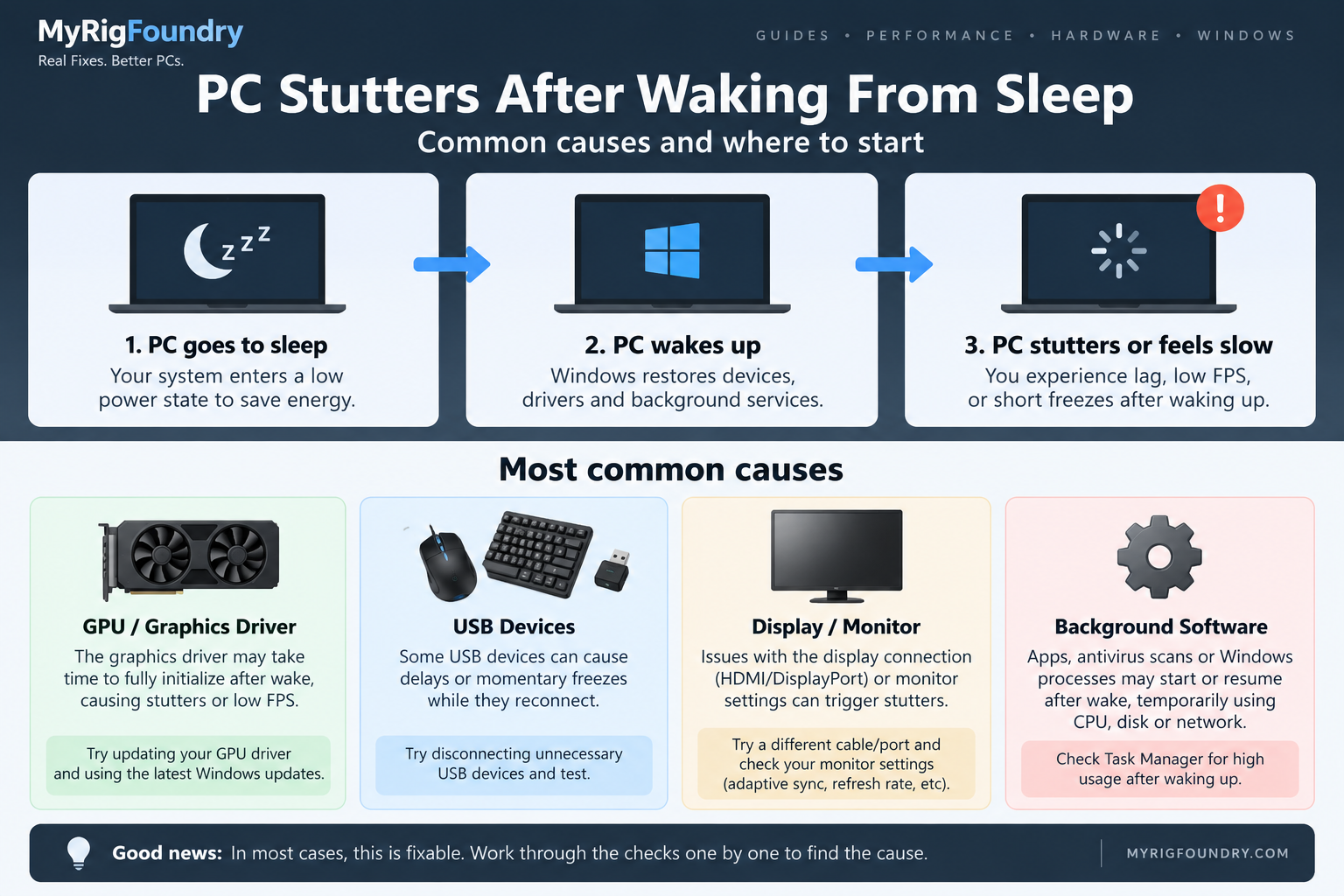
First, confirm that sleep is actually the trigger
Before changing anything, perform a simple comparison.
Restart the PC normally and use it for a few minutes.
Then check whether the system feels smooth.
Next:
- Put the PC into sleep mode.
- Wait about a minute.
- Wake it again.
- Test the same applications or games.
If the stuttering appears only after waking from sleep, you have already narrowed the problem considerably.
A computer that performs normally after every restart but becomes laggy after sleep is showing a different pattern from a PC that is simply slow all the time.
| What happens | What it suggests |
|---|---|
| Restart immediately fixes the stutter | Sleep/resume or driver state is worth investigating |
| Stutter exists even after restarting | The problem may not be related to sleep |
| Only games stutter after sleep | Graphics driver, GPU state or game software becomes more suspicious |
| Mouse, audio and video all stutter | Look for a broader system or device problem |
| Problem begins after connecting a peripheral | Test that device and its driver |
Do this comparison before making several changes at once.
It gives you a baseline.
Restart the graphics driver
If the desktop, mouse movement, video or games suddenly become choppy after waking the PC, the graphics driver is one of the first things worth testing.
Windows provides a keyboard shortcut that can reset the graphics driver without restarting the entire computer:
Windows + Ctrl + Shift + B
Your screen may briefly go black or flicker while the graphics system resets.
After that, test the PC again.
If the stuttering immediately disappears, that is an important clue that the graphics stack or driver may not have resumed correctly.
This does not automatically prove that your GPU is defective.
A driver or software state can cause similar behavior.
Check Task Manager while the PC is stuttering
Do not restart immediately the next time the problem happens.
First open Task Manager with:
Ctrl + Shift + Esc
Check the Processes and Performance sections.
Look for unusual activity involving:
- CPU
- GPU
- Memory
- Disk
- background applications
For example, if one process suddenly consumes a large percentage of CPU after every wake, the apparent “sleep problem” may actually be an application behaving badly after resume.
Likewise, extremely high disk activity can make Windows feel unresponsive even when CPU and GPU usage look normal.
The goal is not to find one specific percentage that is always wrong.
You are looking for something that is clearly different between the normal state and the stuttering state.
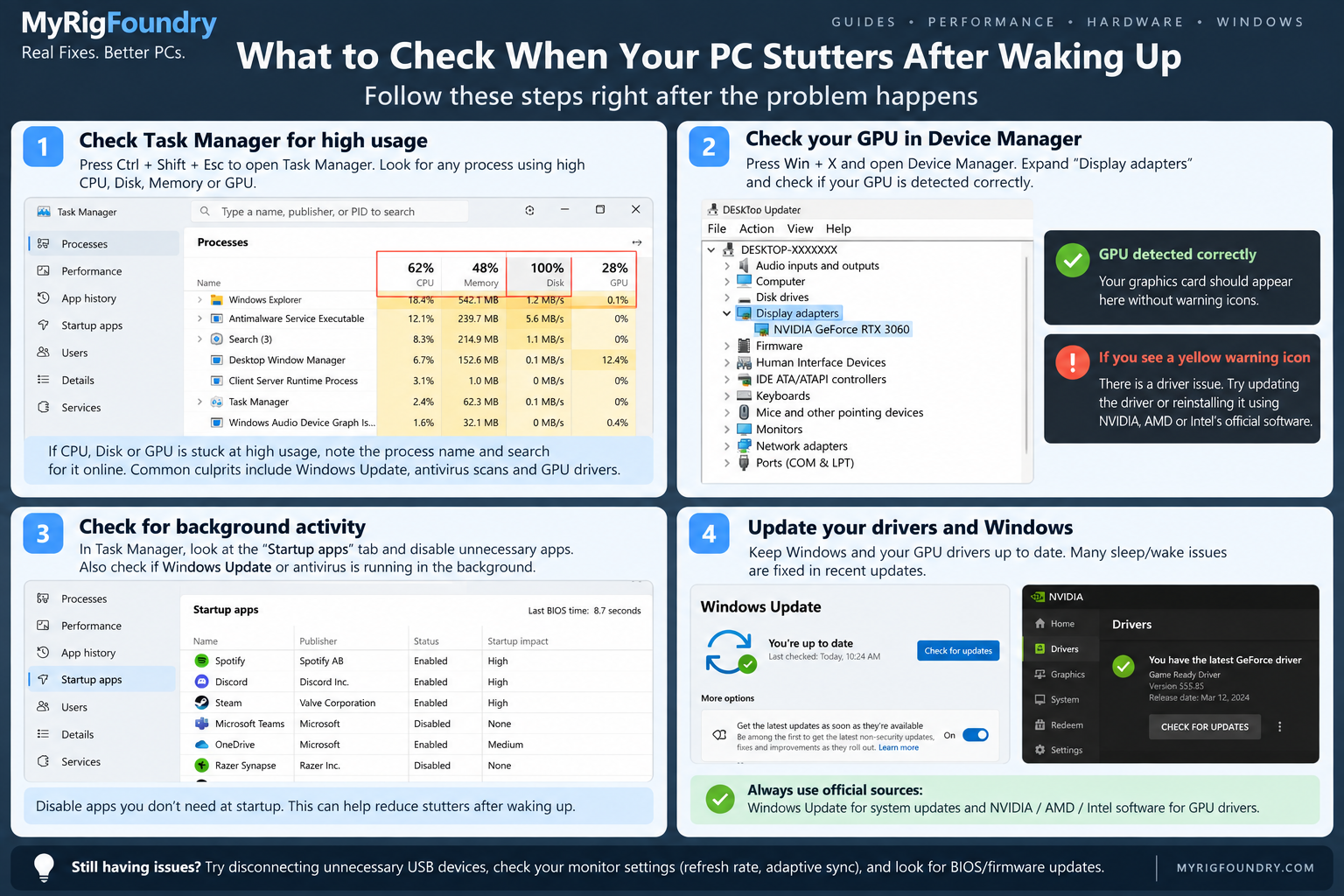
Update Windows before deeper troubleshooting
If the problem began recently, check Windows Update.
On Windows 11:
Settings → Windows Update → Check for updates
Install available system updates and restart the PC.
Sleep and resume behavior involves several parts of the system, so keeping Windows current removes one variable before you start making more aggressive changes.
If the issue appeared immediately after a particular update, however, remember that timing.
It can become useful later when investigating driver versions.
Check your graphics driver
Graphics drivers are particularly important when symptoms involve:
- games
- desktop animations
- video playback
- refresh rate
- multiple monitors
- black screens
- display flickering
Open:
Device Manager → Display adapters
Identify the GPU installed in the system.
Then obtain the appropriate driver from the GPU manufacturer or, when appropriate for a laptop or prebuilt PC, the computer manufacturer’s support page.
Avoid random third-party “driver updater” websites.
They add another variable to a problem that already involves drivers.
If the problem started after a graphics driver update
A newer driver is not automatically a better driver for every system.
If the stuttering started immediately after a graphics driver update, the previous version becomes worth investigating.
Windows Device Manager may offer a Roll Back Driver option:
Device Manager → Display adapters → your GPU → Properties → Driver
Do not repeatedly install random driver versions.
Change one thing, restart, and test the sleep/wake cycle again.
Test without unnecessary USB devices
Sleep does not affect only the GPU.
USB controllers and connected devices also have to transition between power states.
For a simple test, shut down the PC and disconnect unnecessary peripherals.
Keep only what you actually need, such as:
- keyboard
- mouse
- display
Temporarily remove devices such as:
- USB hubs
- external drives
- webcams
- controllers
- wireless USB adapters
- RGB controllers
- audio interfaces
Start Windows again and repeat the sleep/wake test.
If the stuttering disappears, reconnect the devices one at a time.
That is much more useful than randomly changing USB settings because it can identify whether a particular device is involved.
Check whether one monitor or display setup triggers it
Multi-monitor setups add another useful diagnostic test.
If you use two or more monitors, temporarily test the PC with only the main display connected.
Then put the computer to sleep and wake it again.
If the problem disappears with one monitor, investigate the display configuration more closely.
Things worth comparing include:
- refresh rates
- DisplayPort versus HDMI
- GPU driver behavior
- variable refresh rate features
- monitor firmware or drivers when applicable
Again, the goal is isolation.
Do not replace a monitor or GPU simply because disconnecting a display changes the symptoms.
Look for background software that resumes badly
Some applications remain active across sleep and resume.
If Task Manager points toward a particular program, close that application completely and repeat the test.
Software worth checking includes programs that interact heavily with hardware, such as:
- hardware monitoring utilities
- RGB software
- peripheral control software
- overlays
- recording software
- motherboard utilities
If closing one program consistently prevents the stutter after sleep, check whether that application has an update available.
You can also temporarily prevent it from starting automatically and test again.
Compare Sleep with Hibernate
Another useful diagnostic test is to compare what happens after Sleep with what happens after Hibernate.
These are different power states.
If your PC stutters after Sleep but consistently works normally after Hibernate, that strengthens the evidence that the problem is connected specifically to the sleep/resume path.
This is a diagnostic test rather than proof of which component is responsible.
The result can still help narrow the search.
Check BIOS and chipset updates carefully
If Windows and your main device drivers are current but the problem persists, check the support page for your motherboard, laptop or prebuilt PC.
Look for relevant:
- BIOS/UEFI updates
- chipset drivers
- system firmware
- manufacturer power-management updates
Sleep and wake behavior involves coordination between Windows, firmware and hardware.
However, a BIOS update should not be treated like an ordinary application update.
Read the manufacturer’s instructions for your exact motherboard or computer model before performing one.
Do not install firmware intended for a different model.
When the problem started matters
Try to remember when the stuttering first appeared.
Was it after:
- a Windows update?
- a GPU driver update?
- installing a new USB device?
- adding a second monitor?
- changing BIOS settings?
- installing new hardware?
- installing monitoring or RGB software?
A recent change gives you somewhere specific to investigate.
Without that information, it is easy to change five unrelated settings and never learn what actually fixed the problem.
What not to do first
Avoid jumping immediately to drastic fixes.
For example, do not start by:
- reinstalling Windows
- replacing your GPU
- replacing your RAM
- changing many BIOS settings
- installing several driver utilities
- changing ten power settings simultaneously
Those actions make diagnosis harder.
A much better process is:
test → change one thing → sleep → wake → test again
That way, when the problem disappears, you actually know what changed.
When hardware becomes more suspicious
A sleep-related stutter does not automatically mean hardware failure.
Software, drivers and power-state transitions should usually be investigated first when the PC performs normally after a restart.
Hardware becomes more suspicious when problems also occur outside the sleep/wake cycle.
Examples include:
- crashes during normal use
- visual corruption
- devices repeatedly disconnecting
- instability during startup
- errors that continue after a clean restart
- problems across multiple driver configurations
At that point, the issue is no longer strongly isolated to waking from sleep.
What to check first
If you want the shortest troubleshooting path, use this order:
- Restart the PC and confirm that performance returns to normal.
- Reproduce the problem by putting the PC to sleep and waking it.
- Press Windows + Ctrl + Shift + B and test again.
- Check Task Manager before restarting.
- Install relevant Windows updates.
- Check the graphics driver.
- Test without unnecessary USB devices.
- Test with only one monitor if you use multiple displays.
- Close hardware utilities and other background software.
- Compare Sleep with Hibernate.
- Check manufacturer chipset and BIOS/UEFI updates if the problem remains.
Important: Change one variable at a time. If you update several drivers, change BIOS settings and disconnect hardware simultaneously, you may fix the problem without ever discovering its cause.
The key diagnostic clue
The most useful information in this problem is often not the stuttering itself.
It is when the stuttering begins and when it disappears.
If the PC is consistently smooth after a restart and consistently becomes choppy after waking from sleep, focus your investigation on the transition between those two states.
That approach is much more efficient than treating the computer as if it simply lacks performance.
Official resources
- Microsoft Support — Troubleshoot screen flickering in Windows
- Microsoft Support — Troubleshooting blank screens in Windows
- Intel Support — White Screen with Stripes After Resuming From Sleep