Quick answer
If your SSD shows 100% usage in Windows 11 while the PC appears idle, do not assume the drive is failing.
Start by opening Task Manager and identifying which process is accessing the disk. Windows Search indexing, Windows Update, security scans, cloud synchronization and other background applications can all generate storage activity even when you are not actively using the computer.
If the SSD remains at or near 100% for long periods, especially while the PC becomes slow or unresponsive, investigate the process responsible before changing Windows services or replacing the drive.
Seeing an SSD at 100% usage in Task Manager can look alarming.
It becomes even more confusing when you are not downloading anything, copying files or running a game.
The desktop may appear completely idle while Windows reports that the drive is extremely busy.
You might also notice:
- applications taking longer to open
- File Explorer becoming sluggish
- slow Windows searches
- delayed mouse or interface responses
- programs temporarily freezing
- very low transfer speeds despite high disk activity
- disk usage repeatedly jumping to 100%
The important thing is to determine what is using the SSD and whether that activity is temporary or persistent.
100% disk usage does not necessarily mean maximum SSD speed
This distinction is important.
When Task Manager reports very high disk activity, do not interpret the percentage as a simple measurement of how close the SSD is to its advertised maximum read or write speed.
A drive can be extremely busy handling storage requests without transferring files at hundreds or thousands of megabytes per second.
That is why you might see high disk activity while the transfer rate appears surprisingly low.
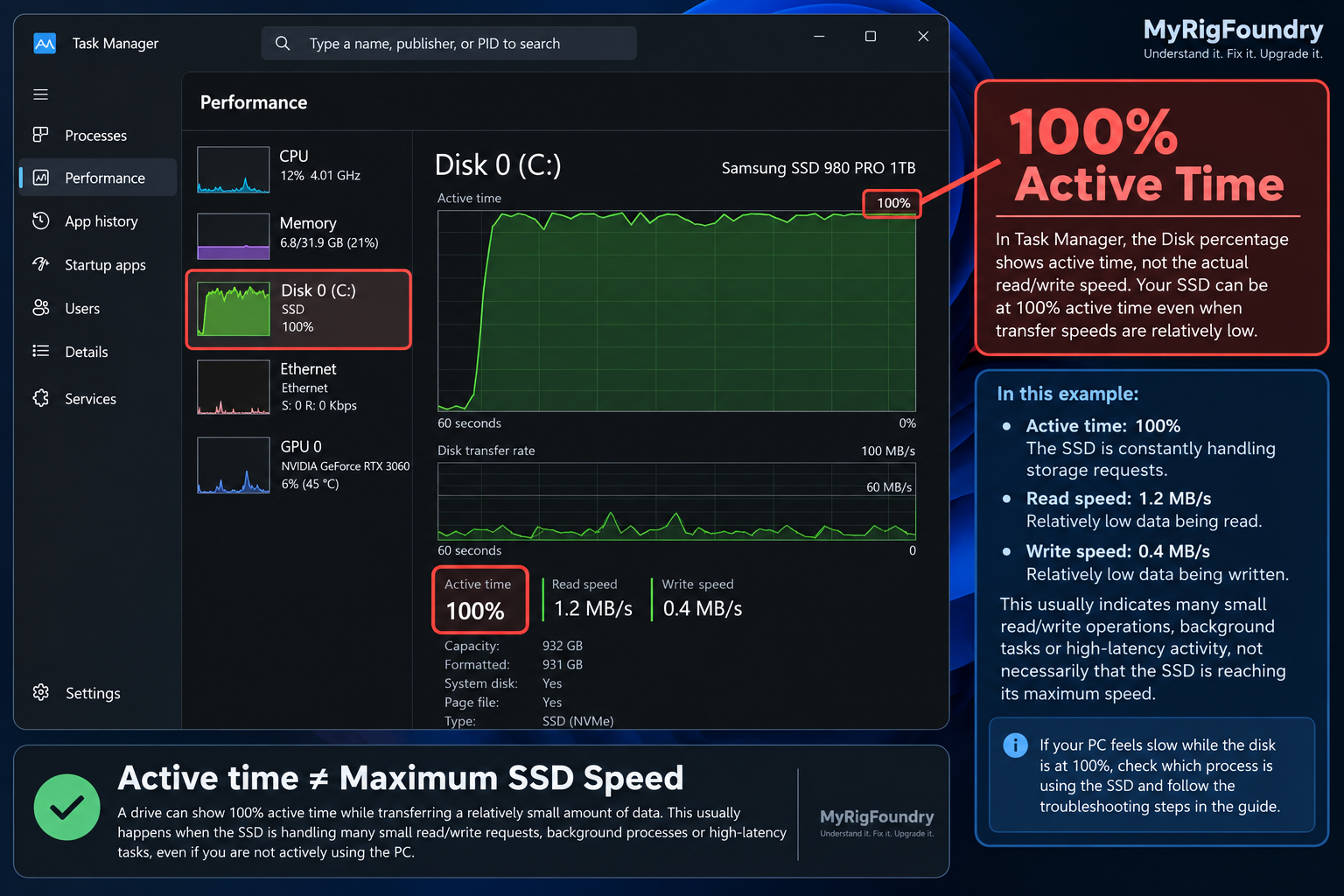
Instead of focusing only on the percentage, compare:
- disk activity
- read speed
- write speed
- response time
- which processes are accessing the drive
- whether Windows actually feels slow
Those clues are more useful together than the 100% number by itself.
First, find what is using the SSD
Before changing any Windows settings, open Task Manager.
Press:
Ctrl + Shift + Esc
Select Processes.
Click the Disk column to sort processes by disk activity.
Watch the list for a minute or two.
Look for processes that repeatedly move to the top.
You might find activity related to:
- Windows components
- antivirus or security software
- cloud synchronization
- game launchers
- Windows Search
- software updates
- browsers
- backup software
- applications you recently installed
Do not immediately end an unfamiliar Windows process.
The goal at this stage is simply to identify what is generating the activity.
If one application consistently appears at the top whenever disk usage reaches 100%, you now have something specific to investigate.
Check whether the activity disappears on its own
Not every spike requires a fix.
Windows performs background work even when you are not actively using the computer.
For example, activity may increase after:
- starting Windows
- installing an update
- downloading an application
- connecting the PC to the internet after being offline
- adding many new files
- installing a game
- moving a large folder
- signing into a synchronization service
Leave the computer alone for several minutes and continue watching Task Manager.
If disk activity gradually returns to normal and the PC remains responsive, you may simply have observed temporary background work.
Persistent 100% usage is more interesting than a short spike.
Check Windows Search indexing
Windows Search maintains an index of files and their properties so searches can return results more quickly.
Indexing can continue in the background, particularly after files have changed or when Windows is building or updating the index.
Open:
Settings → Privacy & security → Searching Windows
Check the search configuration.
Windows provides different indexing modes.
If your PC is indexing a large number of locations, storage activity can increase while the index is being updated.
This is especially worth checking if high SSD activity appeared after:
- adding thousands of files
- moving large folders
- installing Windows
- changing indexed locations
- restoring files from a backup
- enabling broader search indexing
Do not immediately disable Windows Search permanently.
Search indexing is a normal Windows feature.
If indexing is clearly responsible for excessive activity, first determine whether Windows is simply completing temporary indexing work or whether you are indexing locations you do not need.
Check Windows Update
Windows Update can download, prepare and install updates in the background.
Open:
Settings → Windows Update
Check whether Windows is:
- downloading an update
- installing an update
- waiting for a restart
- completing recent update activity
If an update is actively being installed, allow it to finish before diagnosing the SSD further.
Restart the PC if Windows requests it.
Then check Task Manager again.
If disk usage returns to normal afterward, the activity may have been associated with the update process rather than a storage problem.
Check security scans
Security software can generate significant disk activity while scanning files.
If Task Manager points toward Microsoft Defender or another security application, check whether a scan is currently running.
A temporary scan is different from a process that keeps the SSD busy indefinitely.
Let legitimate security scans complete rather than disabling protection just to reduce disk activity.
If a third-party security application repeatedly causes severe performance problems, check the software manufacturer’s support information and available updates.
Check cloud synchronization and backup software
Applications that synchronize files can make a supposedly idle computer very active.
Examples include:
- cloud storage clients
- backup applications
- photo synchronization
- game save synchronization
- file synchronization utilities
This is especially relevant after:
- signing into a new PC
- restoring a backup
- moving many files
- changing synchronization folders
- downloading files from cloud storage
If Task Manager identifies one of these applications, open it and check whether a synchronization operation is still running.
Again, the distinction is between expected temporary activity and activity that never seems to finish.
Check available storage space
An SSD that is nearly full deserves attention even if it is not the direct cause of the 100% reading.
Open:
Settings → System → Storage
Check how much free space remains on the Windows drive.
If storage is very limited, remove files or applications you no longer need.
Windows provides tools such as:
- Storage Sense
- Temporary files
- Installed apps
- storage usage categories
Do not randomly delete folders inside Windows or Program Files to create space.
Use Windows storage tools or uninstall applications normally.
After freeing meaningful space, restart the PC and check disk behavior again.
Check Optimize Drives
Windows includes built-in storage optimization.
Search Windows for:
Defragment and Optimize Drives
Select your SSD and check its status.
Windows handles SSD optimization differently from traditional hard drives.
For SSDs, Windows uses operations such as TRIM rather than traditional HDD-style defragmentation as the primary optimization mechanism.
In most cases, Windows handles drive optimization automatically.
You generally do not need third-party “SSD optimizer” software.
Check startup applications
Some applications automatically launch when you sign into Windows and then continue working in the background.
Open Task Manager:
Ctrl + Shift + Esc
Select:
Startup apps
Review the applications that start automatically.
Pay particular attention to software such as:
- game launchers
- synchronization tools
- hardware utilities
- RGB software
- motherboard utilities
- update managers
- backup software
- applications you rarely use
Do not disable everything at once.
If you suspect one application, disable that specific startup item, restart Windows and compare disk activity.
Changing one variable at a time makes it much easier to identify the actual cause.
Look for a pattern after startup
Timing can reveal a lot.
Ask yourself when the SSD reaches 100%.
Does it happen:
- immediately after signing into Windows?
- several minutes after startup?
- after connecting to the internet?
- after opening a specific program?
- after Windows wakes from sleep?
- after downloading something?
- randomly throughout the day?
For example, disk activity that occurs for several minutes after every startup suggests a different problem from an SSD that suddenly reaches 100% after hours of normal use.
Write down the pattern if necessary.
That information can make troubleshooting much faster.
Restart the PC and compare
A restart is also a useful diagnostic test.
Restart Windows normally.
Do not immediately open your usual applications.
Open Task Manager first and watch the Disk column.
If disk activity is initially high but gradually settles down, startup processes may be involved.
If it immediately remains at 100% for a long period, look at which process is responsible.
If the problem only appears after launching a particular application, that application becomes more suspicious than the SSD itself.
Try a clean boot if background software remains suspicious
If you cannot identify the cause and third-party background software is still a possibility, a Windows clean boot can help isolate software conflicts.
A clean boot starts Windows with a reduced set of startup programs and services.
This makes it useful as a diagnostic test.
If the SSD behaves normally in a clean boot environment, a background application or service becomes more likely.
Do not treat clean boot as a permanent configuration.
The purpose is to isolate the cause and then return Windows to normal startup afterward.
Follow Microsoft’s official clean boot instructions rather than randomly disabling system services.
Check the SSD manufacturer’s software
If background activity does not explain the problem, identify the exact SSD installed in the computer.
You can check:
Device Manager → Disk drives
Then visit the official support page for the SSD manufacturer.
Depending on the drive, the manufacturer may provide software that can display information such as:
- drive health
- firmware version
- temperature
- diagnostic information
- available firmware updates
Use the SSD manufacturer’s official software when available.
Avoid random “driver updater,” “SSD repair” or “PC optimizer” utilities.
If a firmware update is available, read the manufacturer’s instructions carefully before installing it.
Check whether the problem follows a recent change
Think about when the 100% disk usage started.
Was it after:
- a Windows update?
- installing new software?
- installing a new SSD?
- cloning Windows to another drive?
- installing a game launcher?
- enabling cloud synchronization?
- restoring a backup?
- changing antivirus software?
- adding a large number of files?
A recent change gives you a much better starting point than changing random Windows settings.
If the problem started immediately after installing an application, test without that application running before making system-wide changes.
What not to do first
There are many guides online that recommend immediately disabling Windows services when Task Manager shows 100% disk usage.
Avoid making several system changes at once.
Do not begin by:
- permanently disabling Windows Search
- disabling security protection
- disabling many Windows services
- installing random SSD optimization tools
- using third-party driver updater utilities
- editing the registry without a specific reason
- reinstalling Windows
- replacing the SSD immediately
Those changes can create new problems while hiding the original cause.
A better troubleshooting process is:
observe → identify the process → change one thing → restart → compare
That gives you evidence.
When the SSD itself becomes more suspicious
100% disk usage by itself does not prove that an SSD is failing.
The drive becomes more suspicious when high disk activity appears together with other storage-related problems.
Examples include:
- repeated file errors
- applications frequently freezing during disk access
- the drive disappearing unexpectedly
- Windows repeatedly reporting storage errors
- extremely poor performance that persists after background activity stops
- manufacturer diagnostics reporting problems
- problems continuing after software causes have been isolated
If important files are stored on a drive that is behaving abnormally, make sure those files are backed up before doing deeper troubleshooting.
Do not wait for a storage device to completely stop working before protecting important data.
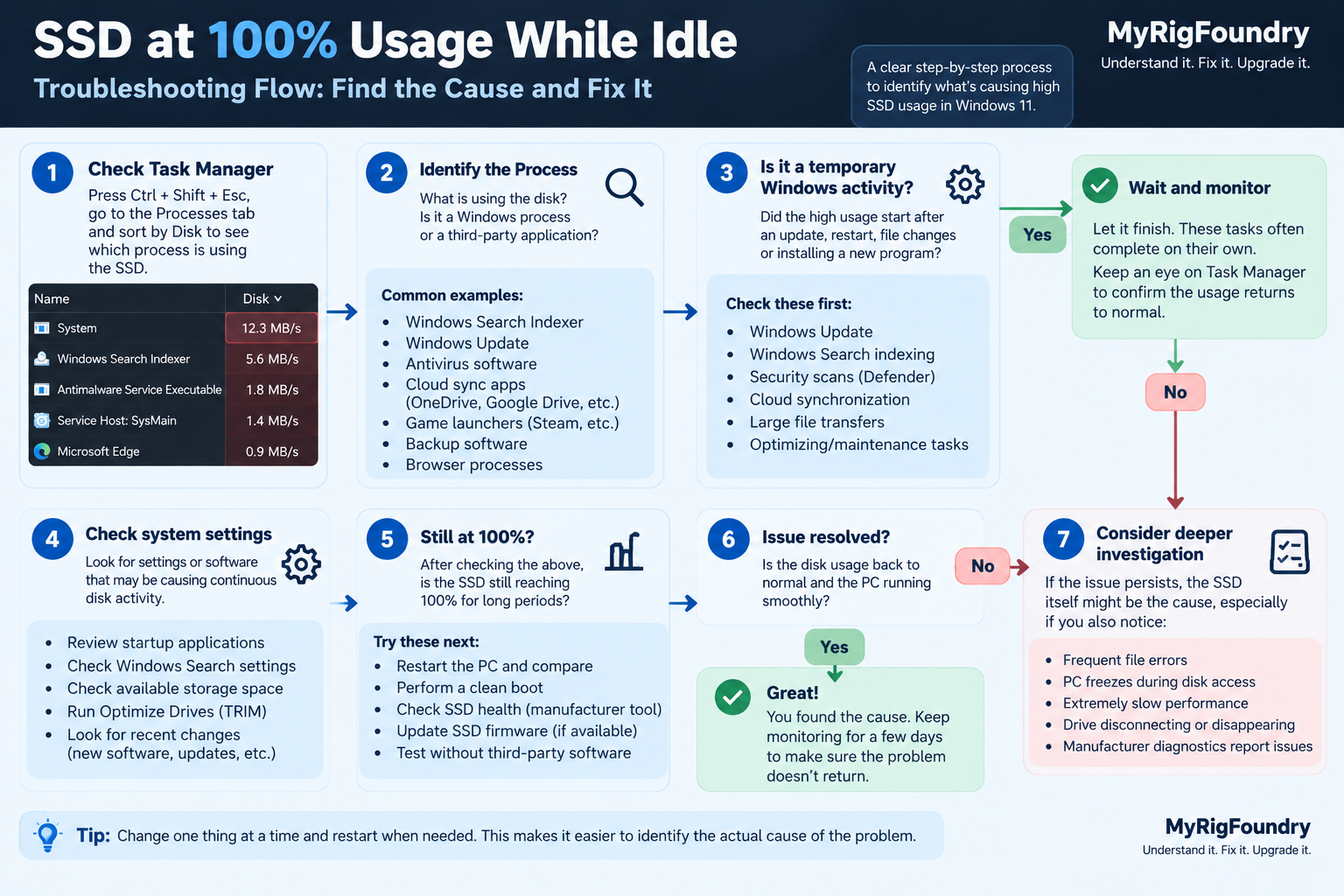
Visual troubleshooting flow
If several possible causes seem to fit the problem, use this flow to narrow them down without changing multiple Windows settings at once.
What to check first
If you want the shortest troubleshooting path, use this order:
- Open Task Manager and sort processes by Disk activity.
- Identify which process is using the SSD.
- Wait several minutes and see whether the activity is temporary.
- Check Windows Update.
- Check Windows Search indexing.
- Check security scans.
- Check cloud synchronization and backup applications.
- Check available storage space.
- Check Optimize Drives.
- Review startup applications.
- Restart Windows and compare disk activity before opening applications.
- Use a clean boot if third-party background software remains suspicious.
- Check the SSD manufacturer’s health and firmware tools if the problem persists.
Important: Do not diagnose the SSD from the 100% number alone. The process using the drive, how long the activity lasts, transfer speeds, system responsiveness and whether the problem returns after a restart provide much more useful information.
The key diagnostic clue
The most useful question is not simply:
“Why is my SSD at 100%?”
It is:
“What is accessing the SSD when it reaches 100%, and does that activity ever stop?”
If Task Manager identifies a process and the activity eventually finishes, you may be looking at normal background work.
If disk activity remains extremely high for long periods with no obvious workload, Windows becomes unresponsive and the same behavior returns after every restart, deeper investigation makes sense.
Start with evidence from Windows before blaming the hardware.
Official resources
- Microsoft Support — Search indexing in Windows
- Microsoft Support — Defragment / optimize your data drives in Windows
- Microsoft Support — Tips to improve PC performance in Windows
- Microsoft Support — How to perform a clean boot in Windows