Quick answer
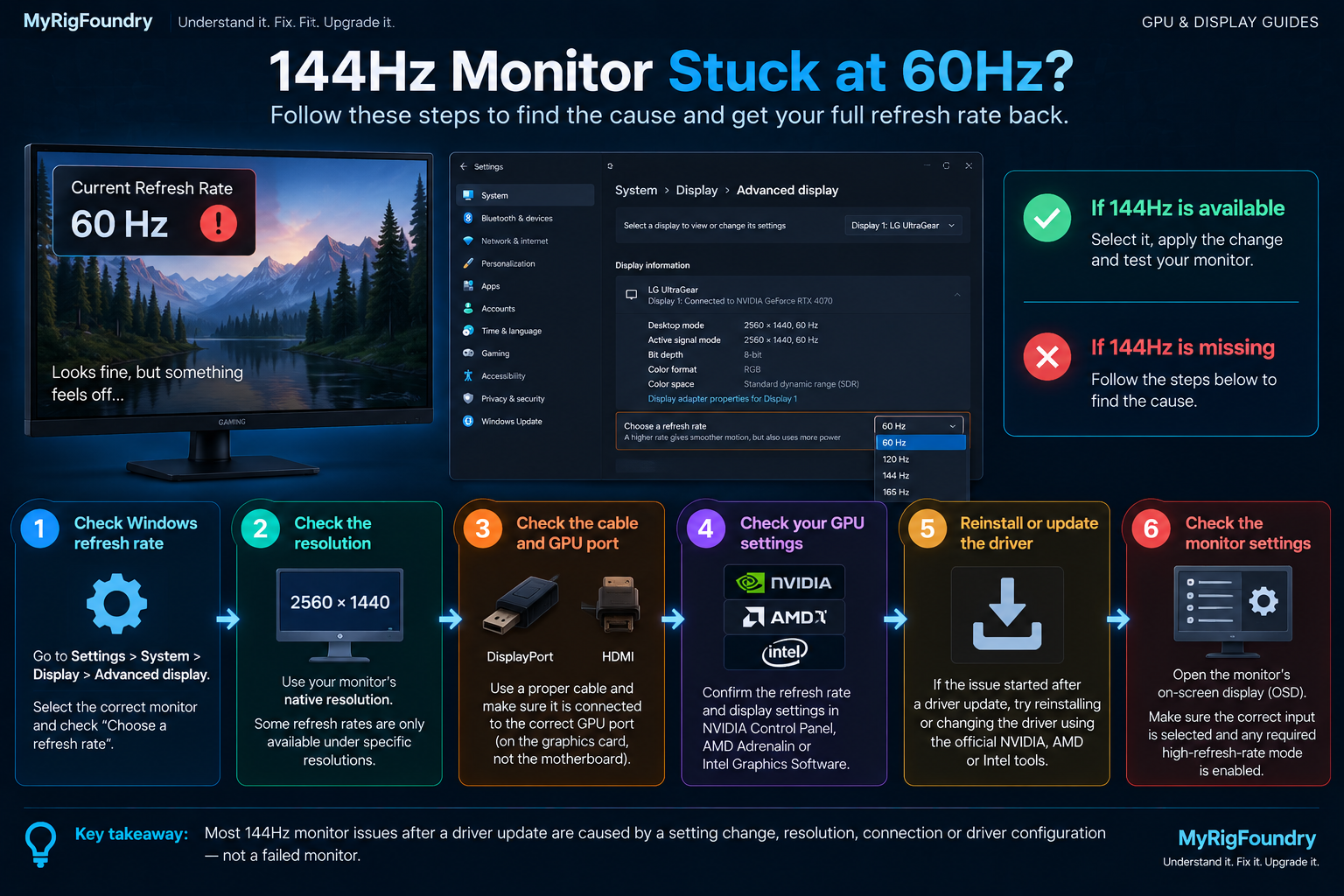
If your 144Hz monitor became stuck at 60Hz after a graphics driver update, first check whether Windows changed the selected refresh rate.
Go to:
Settings → System → Display → Advanced display
Select the correct monitor and check Choose a refresh rate.
If 144Hz is available, select it. If 144Hz has disappeared completely, check the resolution, cable and port, GPU control panel and graphics driver before assuming the monitor is defective.
A graphics driver update can sometimes leave your display configuration different from what you were using before.
The monitor may still work normally, but Windows suddenly shows 60 Hz instead of 120 Hz, 144 Hz, 165 Hz or another expected refresh rate.
The important question is:
Is 144Hz still available but not selected, or has the option disappeared completely?
Those two situations lead to different troubleshooting paths.
Check the refresh rate in Windows first
Open:
Settings → System → Display → Advanced display
If you have multiple monitors, make sure you selected the correct one.
Look for:
Choose a refresh rate
If 144 Hz appears in the list, select it and test the display.
If Windows was simply reset to 60Hz, this may be all you need to do.
If 144Hz is missing, check the resolution
Look at the resolution currently being used.
Set the monitor to its recommended or native resolution and check the available refresh rates again.
Some combinations of resolution, refresh rate and connection type may not be supported.
For example, a display might support its maximum refresh rate only under certain resolutions or inputs.
Use the monitor manufacturer’s specifications to confirm which combinations are officially supported.
Check the cable and GPU port
The connection between the GPU and monitor matters.
Check whether you are using:
- DisplayPort
- HDMI
- an adapter
- a dock
Make sure the cable is connected to the intended port.
On a desktop gaming PC with a dedicated graphics card, the monitor will normally be connected directly to the graphics card rather than the motherboard video output.
If you recently moved cables while troubleshooting the driver update, verify the physical connection before changing more software settings.
Check your GPU control panel
Depending on your graphics hardware, open the official control software from:
- NVIDIA
- AMD
- Intel
Check the display resolution and refresh-rate configuration.
Confirm that the monitor is detected correctly and that you have not accidentally selected a display mode limited to 60Hz.
If Windows and the GPU software disagree about the available refresh rates, the driver becomes more relevant to the investigation.
If the problem started immediately after the driver update
Timing is useful evidence.
If the monitor worked at 144Hz immediately before the graphics-driver update and became limited to 60Hz immediately afterward, record:
- GPU model
- driver version
- monitor model
- connection type
- selected resolution
Restart Windows first if you have not already done so.
Then check the GPU manufacturer’s official support resources for the installed driver.
If necessary, reinstall or change the graphics driver using the GPU manufacturer’s official software and instructions.
Avoid random third-party driver download websites and generic driver-updater utilities.
Check the monitor itself
Some monitors include settings in their on-screen display that affect available refresh rates or input behavior.
Open the monitor’s own menu and confirm:
- the correct input is selected
- any required high-refresh-rate mode is enabled
- the monitor reports the expected connection
- no setting was accidentally changed
The exact options vary significantly between monitor models.
Use the manufacturer’s manual for your specific display rather than copying settings from another monitor.
Quick troubleshooting flow
The shortest path is:
144Hz monitor showing 60Hz
→ Check Advanced display
→ If 144Hz appears, select it
→ If 144Hz is missing, verify native resolution
→ Check cable and GPU port
→ Check NVIDIA/AMD/Intel display settings
→ Restart Windows
→ Investigate the graphics driver if the problem began immediately after the update
→ Check the monitor’s own settings and specifications
What not to do first
Do not immediately:
- replace the monitor
- replace the GPU
- reinstall Windows
- buy an expensive new cable without checking your current connection
- install random driver-updater software
- force unsupported custom resolutions or refresh rates
First determine why Windows is no longer offering the expected refresh rate.
Important: If 144Hz worked before the driver update using the same monitor, resolution, cable and GPU port, that before-and-after comparison is valuable evidence. Check the software configuration before assuming the hardware suddenly failed.
Official resources
- Microsoft Support — Change the Refresh Rate on Your Monitor in Windows
- Microsoft Support — Troubleshoot External Monitor Connections in Windows