Quick answer
If your second monitor starts stuttering while you play a game on your main monitor, do not immediately assume that the second display is defective.
First determine exactly what is stuttering. A video, browser animation or stream on the secondary display can behave differently from the game itself.
Check the refresh rate configured for each monitor, GPU utilization, video playback, variable refresh rate settings and whether the behavior changes when the game switches between fullscreen and borderless/windowed modes.
The most useful test is simple: reproduce the problem, close or pause active content on the second monitor, and compare the result.
A dual-monitor setup can work perfectly on the desktop.
Then you launch a game.
Your main monitor still looks smooth, but something on the second display suddenly feels wrong.
You might notice:
- video playback stuttering
- browser animations becoming choppy
- streams dropping frames
- the mouse appearing less smooth
- Discord or another application feeling sluggish
- the secondary monitor appearing to refresh inconsistently
- the issue disappearing when the game is minimized
This can make it seem like the second monitor itself is failing.
But gaming changes the workload significantly.
Your GPU is now rendering a demanding application while Windows continues presenting content across multiple displays.
The goal is to determine whether the problem follows the monitor, the content being displayed, the game or the GPU workload.
First, identify what is actually stuttering
Before changing settings, describe the symptom precisely.
There is a major difference between:
the game stutters on the main monitor
and:
content on the second monitor stutters while the game remains smooth
There is also a difference between:
everything on the second monitor looks choppy
and:
only video playback stutters
Try moving an ordinary window around the secondary display.
Then test:
- browser scrolling
- a video
- Discord
- Task Manager
- the mouse cursor
This helps determine whether the entire display appears affected or only one application.
Test the second monitor without the game running
Close the game completely.
Use the second monitor normally.
If everything becomes smooth again, the display itself is less likely to be the immediate cause.
Then launch the game and reproduce the problem.
If the pattern is:
game closed → second monitor smooth
game running → second monitor stutters
you have isolated gaming as the trigger.
Now you can investigate what changes when the game starts.
Check the refresh rate of both monitors
Windows allows each connected display to use its own supported refresh rate.
Open:
Settings → System → Display → Advanced display
Select the first monitor and record its refresh rate.
Then select the second monitor and do the same.
You might find a configuration such as:
Main monitor: 165 Hz
Second monitor: 60 Hz
Different refresh rates are not automatically a problem.
Many PCs operate mixed-refresh-rate displays normally.
However, refresh-rate differences are still worth documenting during troubleshooting, particularly when the issue involves video or motion on one display.
Microsoft specifically notes that different refresh rates across multiple monitors can cause video playback problems in some situations.
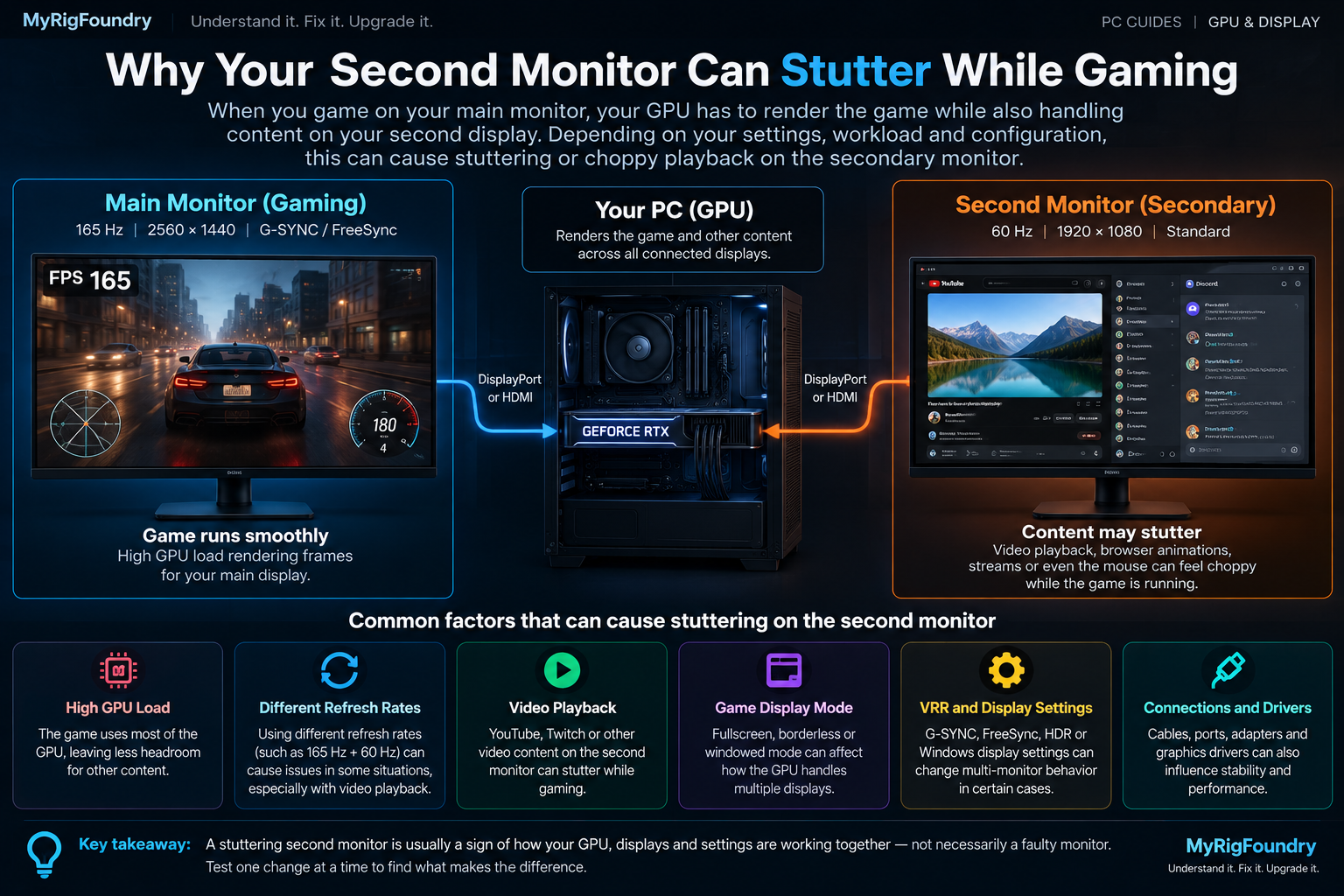
How the two-display workload fits together
When you game on one display while running video, Discord, a browser or other GPU-accelerated content on another, the GPU may be handling multiple presentation workloads at the same time.
That does not mean a dual-monitor configuration is inherently problematic.
But it gives us several variables to test: GPU load, refresh rates, active video content, display mode, VRR and the physical display connections.
Do not automatically force both monitors to 60 Hz
This is an important distinction.
Seeing:
165 Hz + 60 Hz
does not prove that the refresh-rate difference caused your problem.
Reducing the main gaming monitor to 60 Hz could also throw away one of the biggest benefits of owning a high-refresh-rate display.
Instead, use refresh-rate changes as controlled tests.
For example:
165 Hz + 60 Hz → problem
then temporarily test:
120 Hz + 60 Hz
or another supported combination.
If the behavior changes consistently, you have useful evidence.
If nothing changes, restore your preferred refresh rates and continue troubleshooting.
Check whether video playback is the trigger
A common version of this problem occurs when the second monitor is playing:
- YouTube
- Twitch
- another streaming service
- an animated webpage
- video inside Discord or another application
Test the same game with the video:
playing
and then:
paused
If the secondary display becomes smooth when video playback stops, you have isolated another part of the workload.
That does not necessarily mean your internet connection is responsible.
Video playback can involve GPU acceleration, video decoding and browser rendering.
The useful clue is that active video content changes the behavior.
Check GPU utilization
Open Task Manager with:
Ctrl + Shift + Esc
Go to:
Performance → GPU
Reproduce the problem while the game is running.
Watch:
- overall GPU utilization
- dedicated GPU memory
- GPU engine activity
- video decode activity when relevant
Then compare the system with the game minimized or closed.
If the GPU is already heavily loaded by the game, there may be less scheduling headroom for other GPU-accelerated workloads.
This becomes particularly interesting if reducing the game’s GPU load makes the secondary display smooth again.
Try limiting the game’s frame rate
An uncapped game can sometimes use nearly all available GPU rendering capacity.
As a diagnostic test, apply a reasonable FPS limit.
For example, if the game is rendering hundreds of frames per second unnecessarily, limiting the frame rate can reduce GPU load.
Then check the second monitor again.
If:
uncapped FPS → secondary content stutters
but:
limited FPS → secondary content becomes smooth
then GPU load deserves further investigation.
This does not mean every dual-monitor system requires an FPS cap.
It is a diagnostic comparison.
Lower one demanding graphics setting temporarily
You can perform another controlled GPU-load test.
Temporarily reduce a demanding setting such as:
- ray tracing
- resolution scale
- rendering resolution
- another major GPU-heavy option
Then reproduce the same situation.
If reducing GPU load immediately improves content on the second monitor, the problem may be related more to workload than to the physical display.
Restore the setting afterward if it makes no difference.
Test fullscreen and borderless modes
Display behavior can differ depending on how the game presents frames.
If the game supports them, compare:
exclusive fullscreen
borderless fullscreen
windowed
Do not assume one mode is universally better.
Test the same scene under similar conditions.
Windows 11 also includes optimizations for compatible windowed and borderless DirectX games.
If one presentation mode consistently eliminates the secondary-monitor problem, that is a valuable diagnostic clue.
Check variable refresh rate
Your main gaming display may support variable refresh rate technologies.
Windows can show whether a display supports VRR from:
Settings → System → Display → Advanced display
VRR allows the display’s refresh behavior to adapt dynamically in supported scenarios.
Depending on your hardware, additional VRR settings may also exist in your GPU manufacturer’s software.
Record whether VRR is enabled before changing it.
Then, if necessary, temporarily compare the behavior with different supported configurations.
Change one setting at a time.
Otherwise you will not know which change affected the result.
Check Dynamic Refresh Rate separately
Windows 11 also has a feature called Dynamic Refresh Rate, or DRR, on supported hardware.
DRR is not exactly the same thing as the gaming VRR behavior people commonly associate with technologies such as adaptive synchronization.
If your display supports DRR, Windows exposes the setting under Advanced display.
If you suspect refresh behavior, record its current state before experimenting.
Microsoft notes that DRR can affect maximum refresh rate in some games that do not properly support VRR.
Again:
one change → test → compare
Do not randomly toggle every display feature at once.
Check which GPU drives each display
On desktop PCs with a dedicated graphics card, check the physical monitor connections.
A common gaming setup has both monitors connected directly to the dedicated GPU.
But some systems may use different graphics paths.
For example:
- one monitor connected to the dedicated GPU
- another connected to motherboard video output
- laptops using hybrid graphics
- USB display adapters
- docks
- DisplayLink-based devices
These configurations are not automatically wrong.
But they introduce another variable.
Record exactly how each monitor is connected before troubleshooting further.
Check the cables and ports
A cable problem usually produces symptoms different from ordinary application stuttering, but physical connections are still worth checking.
Confirm:
- HDMI or DisplayPort cable is firmly connected
- the monitor is using the expected input
- the selected resolution is correct
- the expected refresh rate is actually available
- adapters or docks are not unexpectedly limiting the connection
If you suspect the physical path, test another known-good compatible cable or another appropriate GPU port.
Do not buy new hardware before performing the simpler software comparisons.
Check whether hardware acceleration changes the behavior
Browsers, Discord and other desktop applications can use hardware acceleration.
If the stuttering occurs specifically inside one application on the second monitor, check whether that application provides a hardware-acceleration setting.
Record the original setting.
Then temporarily change it, restart the application if required and reproduce the same workload.
If only one application responds to this change, the problem may be more application-specific than monitor-specific.
Do not disable hardware acceleration everywhere as a universal fix.
Use it as a controlled test.
Check the graphics driver
If the problem began immediately after a graphics-driver update, that timing matters.
First restart Windows if you have not already done so.
Then identify:
- GPU model
- current graphics-driver version
- when the driver was installed
- whether the problem existed before the update
Check the official NVIDIA, AMD or Intel support resources appropriate for your GPU.
If the issue appeared immediately after a driver change, investigate that version specifically.
Avoid random third-party driver download websites and generic driver-updater utilities.
Restart the graphics driver as a quick test
Windows provides a keyboard shortcut that can restart the graphics driver:
Windows + Ctrl + Shift + B
The screens may briefly flicker or go black while the graphics stack resets.
If the second-monitor behavior suddenly returns to normal afterward, that is useful diagnostic information.
It does not identify the final cause by itself.
But it makes the graphics software path more interesting.
Test with only one monitor connected
If the problem remains difficult to isolate, temporarily test the PC with only the main gaming monitor connected.
Run the same game.
Then reconnect the second display and repeat the test.
If the problem exists only in the dual-monitor configuration, you have narrowed the scope significantly.
That still does not tell you whether the cause is:
- refresh behavior
- GPU load
- video playback
- driver behavior
- application acceleration
- display configuration
But it confirms that the multi-display setup is relevant.
Swap which monitor runs the game
Another useful experiment is to move the game to the other display when practical.
The question is:
Does the problem follow the physical monitor?
or:
Does the problem follow whichever monitor is secondary?
Those are very different clues.
If one specific monitor behaves badly regardless of role, investigate that monitor’s configuration and connection.
If whichever display becomes secondary develops the problem while gaming, investigate the multi-monitor workload and software configuration.
Check resolution and scaling
Open:
Settings → System → Display
Select each monitor individually.
Record:
- display resolution
- scale
- orientation
- refresh rate
Use the monitor’s recommended/native resolution unless you have a specific reason not to.
Different scaling values are common in multi-monitor setups and are not automatically problematic.
Again, document the configuration rather than assuming every difference is an error.
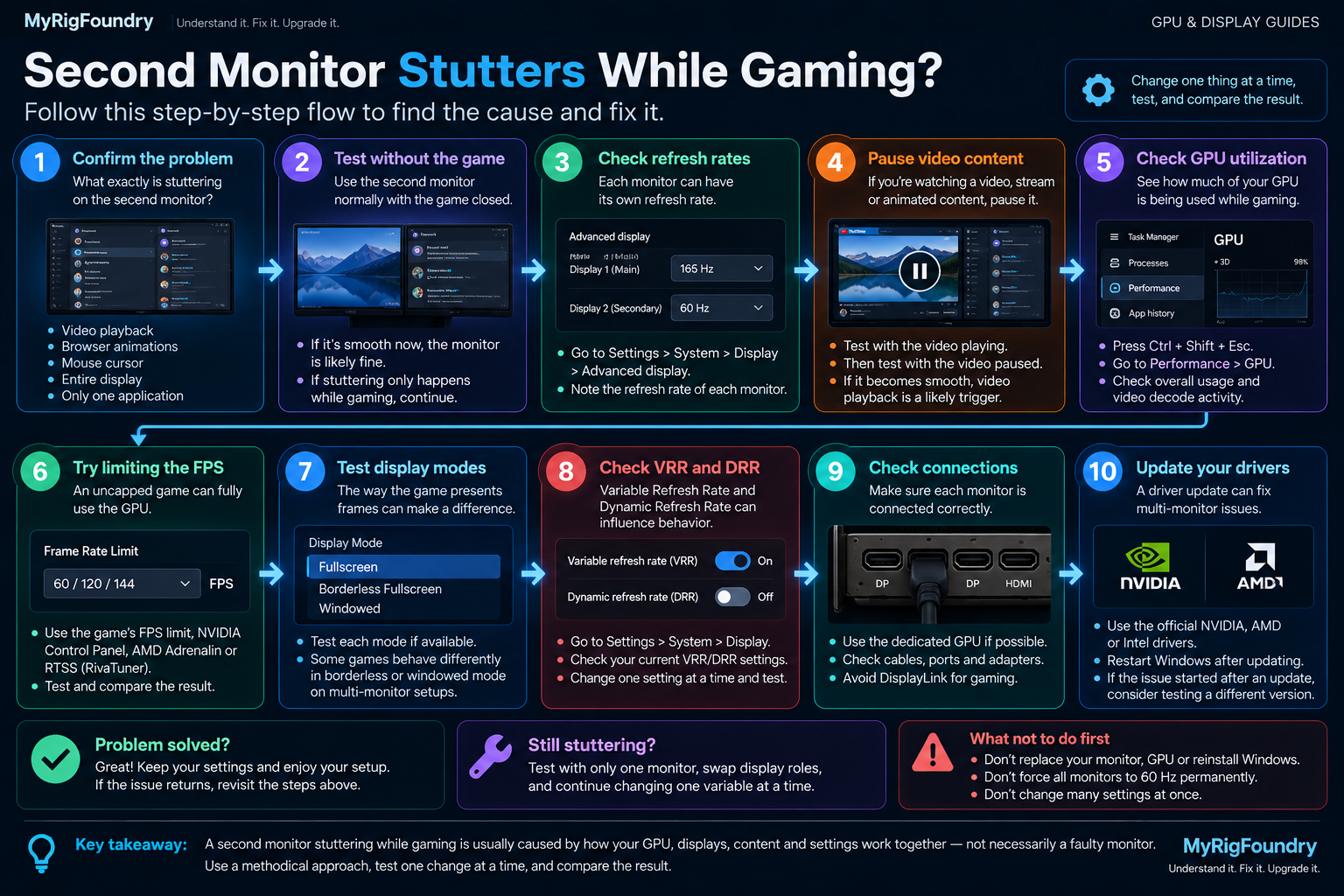
Visual troubleshooting flow
Use this flow to isolate which change makes the secondary-monitor stuttering appear or disappear.
What not to do first
If your second monitor stutters while gaming, avoid immediately:
- replacing the monitor
- replacing the GPU
- reinstalling Windows
- forcing every display to 60 Hz permanently
- disabling every GPU feature
- installing random driver-updater software
- changing many NVIDIA or AMD settings simultaneously
- editing the registry based on random tweaks
You need a repeatable comparison first.
What to check first
If you want the shortest troubleshooting path, use this order:
- Confirm exactly what is stuttering on the second monitor.
- Test the second monitor without the game running.
- Reproduce the problem with the game running.
- Pause any video or animated content on the secondary display.
- Check the configured refresh rate of both monitors.
- Watch GPU utilization while reproducing the problem.
- Temporarily limit the game’s frame rate.
- Compare fullscreen, borderless and windowed modes.
- Check VRR and display configuration.
- Check how each monitor is physically connected.
- Test application hardware acceleration if one app is affected.
- Check whether the problem began after a graphics-driver update.
- Test with only one monitor connected.
- Swap display roles if practical.
- Change one setting at a time and compare the result.
Important: Two monitors using different refresh rates do not automatically indicate a broken configuration. Treat refresh-rate differences as one variable to test rather than assuming they are the cause of every dual-monitor stutter.
The key diagnostic clue
The most useful question is:
What exact change makes the stuttering appear or disappear?
For example:
game closed → second monitor smooth
game running → second monitor stutters
Then:
game running + video paused → smooth
or:
game running + FPS limited → smooth
or:
one monitor connected → smooth
Each result points toward a different part of the system.
A good diagnosis comes from changing one variable at a time.
Do not start by asking:
“Which component should I replace?”
Start by asking:
“Which condition triggers the problem?”
That is usually much more useful.
Official resources
- Microsoft Support — How to Use Multiple Monitors in Windows
- Microsoft Support — Change the Refresh Rate on Your Monitor in Windows
- Microsoft Support — Video Playback Settings in Windows
- Microsoft Support — Optimizations for Windowed Games in Windows 11