Quick answer
If your PC stutters while Steam is downloading or updating a game, your internet connection may not be the actual problem.
Downloading a Steam game can involve more than receiving data from the internet. Your PC also has to process and write game data to storage, and updates may involve substantial disk activity. At the same time, security software and other background applications may also access those files.
Start by checking CPU, disk, memory and network activity in Task Manager while the stuttering is happening. If the problem appears only during Steam downloads and disappears when the download is paused, you have already found an important clue.
A Steam download can make a PC behave strangely.
Your internet connection may be fast, the game may normally run perfectly, and temperatures may look fine.
Then you start downloading or updating another game and suddenly notice:
- mouse movement feeling less responsive
- applications taking longer to open
- games stuttering
- frame-time spikes
- Steam download speed repeatedly dropping
- disk usage becoming very high
- CPU usage increasing
- the entire desktop occasionally feeling sluggish
The obvious assumption is often:
“Steam is using all my internet.”
But network bandwidth is only one part of the process.
Your CPU and storage drive can also become involved heavily enough to affect other workloads.
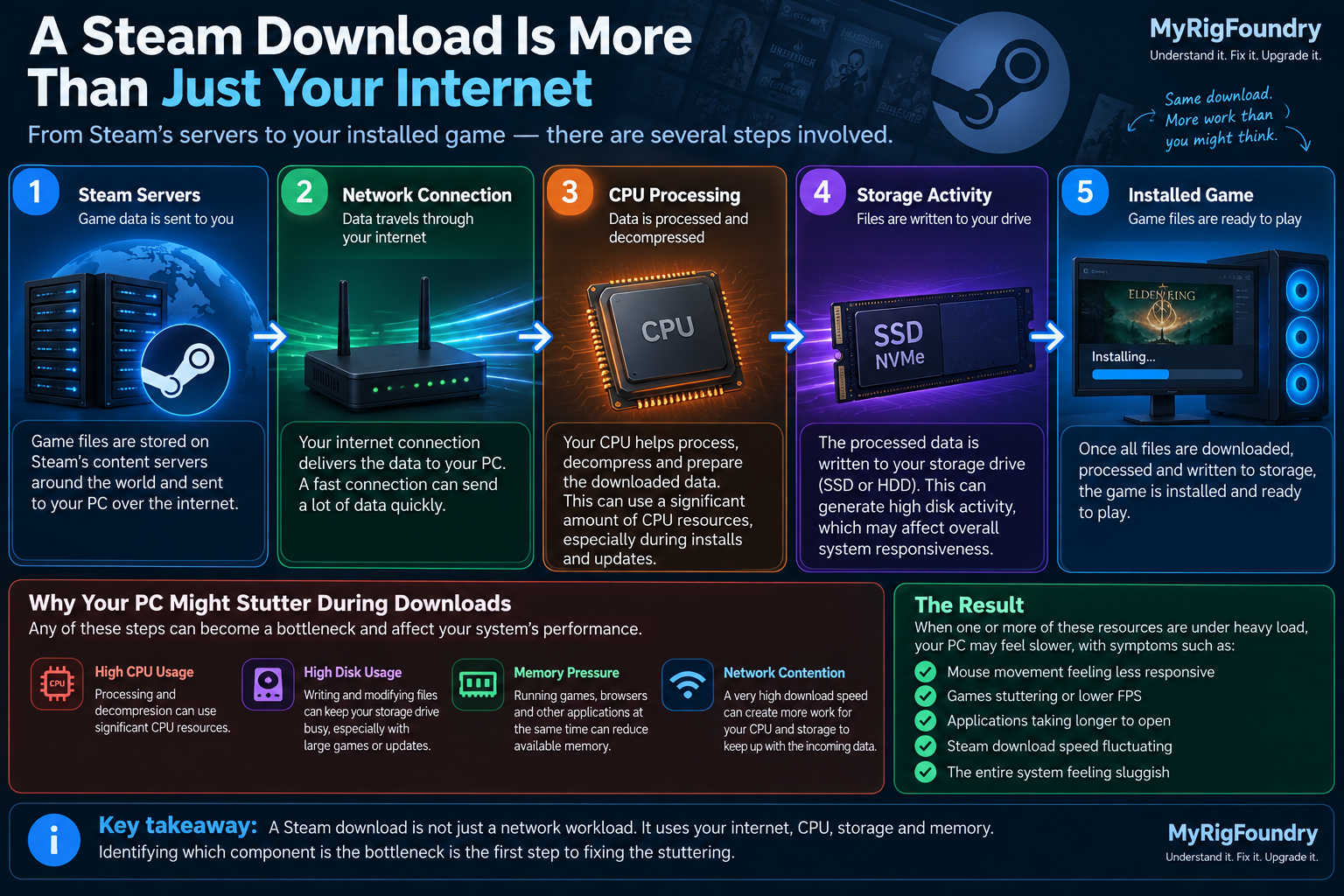
A Steam download is not only a network workload
When you download a game, data has to travel through several parts of the system.
At a simplified level, the process looks like this:
Steam servers → network connection → CPU processing → storage activity → installed game files
The exact workload varies depending on whether Steam is installing a new game, downloading an update or modifying existing game files.
The important point is that a fast internet connection can create substantial work elsewhere in the PC.
If data arrives quickly but your CPU or storage cannot process it at the same rate, another component can become the bottleneck.
That can explain why:
- network usage rises and falls
- disk activity suddenly increases
- Steam temporarily appears to stop downloading
- other applications become less responsive
The fastest component does not determine the entire process.
The slowest part of the current workload can become the limiting factor.
First, confirm that the Steam download is actually the trigger
Before changing anything, perform a simple comparison.
Start the Steam download and observe the stuttering.
Then pause the download.
Wait several seconds.
Does the PC immediately become smoother?
Resume the download.
Does the stuttering return?
Repeat the comparison once or twice.
If the pattern is:
download running → stuttering
download paused → smooth
download resumed → stuttering
then Steam’s download or installation workload is strongly associated with the problem.
That does not yet tell you which component is responsible.
But it gives you a reliable trigger for testing.
Open Task Manager while the problem is happening
Press:
Ctrl + Shift + Esc
Open Task Manager.
Check the following resources while Steam is actively downloading:
- CPU
- Memory
- Disk
- Network
Do not look only at the overall percentages.
Also check which processes are responsible for the activity.
The goal is to determine what changes when the stuttering begins.
For example:
| What you see | What to investigate |
|---|---|
| CPU becomes heavily loaded | Processing or another CPU-intensive workload |
| Disk stays extremely busy | Storage may be the bottleneck |
| Memory is almost full | Windows may have less memory available for games and applications |
| Network is heavily used but CPU/disk remain comfortable | Network contention becomes more plausible |
| Security software shows significant activity | File scanning may be adding additional work |
| Steam is the main active process | Steam’s download/install workload deserves closer inspection |
Do not diagnose the problem from one percentage alone.
Look at the pattern.
Check whether the SSD is becoming the bottleneck
Steam downloads can generate significant storage activity.
Open:
Task Manager → Performance → Disk
Watch the drive where the Steam library is located.
Pay attention to:
- active time
- read activity
- write activity
- response time
- whether the drive remains heavily loaded
- whether the stuttering occurs at the same time
A storage drive can be busy even when the transfer rate does not look impressive.
The workload may involve many storage operations rather than one large sequential transfer.
If disk activity becomes extreme whenever Steam downloads and the PC becomes smooth again when the download is paused, storage contention becomes a strong suspect.
Check where the game is being installed
Steam may not be downloading to the drive you expect.
Check which Steam library contains the game.
Then compare that location with Task Manager.
For example, a PC might have:
- Windows on an NVMe SSD
- one Steam library on the NVMe SSD
- another Steam library on a SATA SSD
- an older library on a hard drive
The behavior can differ depending on which drive is receiving the game.
If downloads to one Steam library cause severe stuttering but downloads to another do not, that comparison is extremely useful.
It points toward a storage-specific difference rather than Steam universally making the PC slow.
An HDD can struggle much more with this workload
If your Steam library is stored on a mechanical hard drive, high disk activity is less surprising.
Hard drives have mechanical read/write heads and much higher access latency than SSDs.
Modern game installations and updates can involve many storage operations.
That type of workload can make a hard drive feel extremely busy.
If Windows, Steam and the game you are currently playing are all competing for access to the same HDD, the entire PC may become noticeably less responsive.
That does not automatically mean the drive is defective.
It may simply be the limiting component for that workload.
An SSD can still become heavily loaded
Do not assume this problem is impossible because you have an SSD.
Different SSDs can behave very differently.
Performance can depend on factors such as:
- SSD model
- interface
- available free space
- sustained workload
- background activity
- other applications using the drive
- whether Windows is also using the same drive
- drive health
An SSD reaching high activity during a Steam download does not automatically mean it is failing.
First determine whether the drive behaves normally outside this workload.
If your SSD also reaches 100% usage while the PC is genuinely idle, that is a different diagnostic situation.
Check CPU usage
Storage is not the only possible bottleneck.
Watch CPU usage in Task Manager while Steam is downloading.
Compare:
Steam paused
with:
Steam downloading
If CPU load increases significantly when the download begins and the stuttering follows the same pattern, CPU contention becomes more plausible.
This can matter even more if you are trying to play another CPU-intensive game while Steam works in the background.
Do not look only at total CPU usage.
A workload does not always need to show 100% total CPU usage before it can interfere with another application.
The useful clue is whether CPU activity and stuttering appear together.
Check memory usage
Open:
Task Manager → Performance → Memory
If your system is already close to its memory limit before starting the Steam download, running Steam and another game at the same time can add more pressure.
Low available memory can cause Windows to rely more heavily on storage.
That can create additional disk activity and hurt responsiveness.
This is especially relevant if you are simultaneously running:
- a modern game
- a browser with many tabs
- Discord
- recording software
- game launchers
- RGB utilities
- hardware monitoring tools
- other background applications
Close unnecessary applications and compare again.
The goal is not to permanently close everything.
It is to determine whether resource pressure is contributing to the stuttering.
Check security software activity
Game downloads involve large numbers of files being written or modified.
Security software may inspect files as they appear on the system.
While the stuttering is happening, check Task Manager for significant activity from:
- Microsoft Defender
- third-party antivirus software
- other security applications
Do not disable Windows security protection just to make Steam download faster.
Instead, determine whether security scanning is actually associated with the slowdown.
If you use third-party security software and it appears to be causing abnormal performance problems, consult that software’s official documentation.
Avoid adding broad antivirus exclusions simply because a random online guide recommends it.
Check available storage space
Open:
Settings → System → Storage
Then check the drive containing your Steam library.
If the drive is extremely full, free some space and test again.
You can also check Steam itself to see how storage is distributed across your libraries.
Avoid filling an SSD until virtually no free space remains.
If you need to remove games, uninstall them normally through Steam rather than manually deleting random game folders.
Then restart Steam and compare the download behavior again.
Check whether the problem happens with downloads or updates
Installing a new game and patching an existing game are not necessarily identical workloads.
Pay attention to when the stuttering occurs.
Does it happen:
- while installing a completely new game?
- only while updating an existing game?
- during both?
- only with very large games?
- only with one particular game?
If the problem appears mostly during game updates, storage activity becomes especially interesting to investigate.
If every Steam download causes the same behavior regardless of the game, the bottleneck may be more general.
The pattern matters.
Watch Steam’s download graph
Open the Downloads page in Steam.
Watch what happens over time.
You may notice the network transfer rate and disk activity behaving differently.
For example, network activity may fall while the PC continues working on game data.
That does not automatically mean your internet connection failed.
The system may be busy with another stage of the installation or update process.
This is why diagnosing Steam performance from download speed alone can be misleading.
Compare Steam’s graph with Task Manager.
Together they provide much better information.
Test a temporary Steam download limit
If the PC becomes unusable only when Steam downloads at full speed, reducing Steam’s maximum download bandwidth can be a useful diagnostic test.
Open Steam’s download settings and apply a temporary download limit below your normal maximum speed.
Then repeat the workload.
If:
full download speed → severe stuttering
but:
limited download speed → much smoother PC
then reducing how quickly data arrives is reducing pressure somewhere in the processing chain.
That does not automatically prove that your internet connection was the problem.
It may mean the CPU or storage drive now has more time to keep up with the incoming data.
The trade-off is obvious:
the download will take longer.
But as a diagnostic test, this can be very useful.
If you are gaming, consider pausing downloads
If your goal is simply to play a demanding game smoothly, the simplest solution may be to avoid a large Steam download at the same time.
A PC has finite resources.
Playing a game may already use:
- CPU
- RAM
- storage
- network bandwidth
Running a large download and installation workload simultaneously creates competition for some of those same resources.
If pausing the Steam download completely removes the stuttering, there may be nothing fundamentally wrong with the computer.
You may simply be asking the system to perform two demanding workloads at once.
Check background applications
Steam may not be the only program doing work.
While reproducing the problem, check Task Manager for:
- cloud synchronization
- backup software
- another game launcher
- Windows Update
- browser downloads
- recording software
- antivirus scans
- file transfers
- Windows Search activity
Several moderate workloads can combine into one large bottleneck.
For example:
Steam + game + cloud sync + antivirus scan
can create much more storage pressure than Steam alone.
Close unnecessary applications one at a time and compare the result.
Restart Steam and Windows
If the behavior suddenly appeared even though Steam normally downloads without affecting the PC, restart Steam.
If that does not change anything, restart Windows.
Then reproduce the same download before opening unnecessary applications.
This creates a cleaner baseline.
If the stuttering disappears after restarting, the issue may have involved a temporary background process or software state.
If it returns every time Steam begins downloading, continue investigating the repeatable bottleneck.
Clear the Steam download cache only when appropriate
Steam provides an official option to clear the download cache.
This can help with certain problems involving games that fail to download or start.
Open:
Steam → Settings → Downloads → Clear Download Cache
Steam may require you to sign in again afterward.
However, do not treat clearing the download cache as a universal performance fix.
If Steam downloads correctly and the only symptom is that your PC becomes busy during the download, first investigate CPU, storage and background activity.
Use the cache reset when the download process itself appears to be malfunctioning.
Check your Steam download region if the download itself is slow
If the main problem is unusually slow Steam download speed rather than system stuttering, check your selected Steam download region.
Steam uses content servers in different locations and provides a download-region setting.
This is a different diagnostic path.
A poor content-server connection can reduce download speed.
But changing the download region is unlikely to explain a PC that becomes sluggish because its CPU or storage is heavily loaded.
Separate:
slow internet/download path
from:
local PC resource bottleneck
before changing settings.
Do not confuse Mbps and MB/s
Internet plans are usually advertised in:
megabits per second — Mbps
Steam may display download speed using:
megabytes per second — MB/s
There are eight bits in one byte.
So, approximately:
800 Mbps ÷ 8 = 100 MB/s
before considering protocol overhead and other real-world factors.
That means seeing a Steam download around 100 MB/s on a fast connection does not mean you are receiving only one eighth of the speed you purchased.
Make sure you are comparing the same units before diagnosing a network problem.
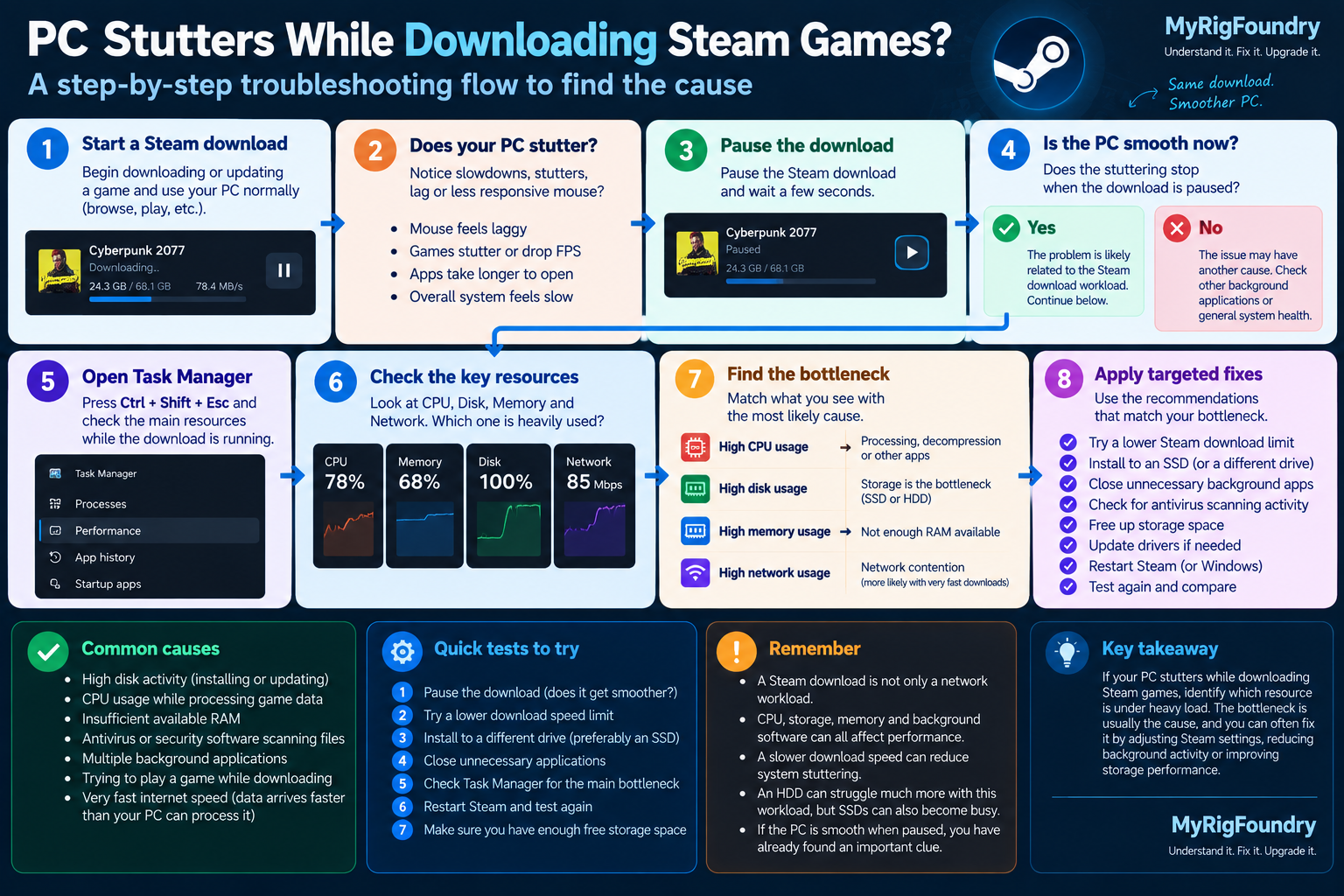
Visual troubleshooting flow
If Steam consistently makes the PC stutter, use this flow to determine whether the bottleneck is CPU, storage, memory, network usage or another background workload.
When the storage drive becomes more suspicious
High disk activity during a large game download does not automatically mean the drive is defective.
The storage device deserves deeper investigation if you also see problems such as:
- extremely poor performance outside Steam
- persistent 100% usage while genuinely idle
- file errors
- unexplained freezes during ordinary file access
- the drive disappearing
- Windows reporting storage problems
- manufacturer diagnostics reporting problems
At that point, the issue is no longer isolated to Steam downloads.
That changes the diagnosis.
What not to do first
If Steam downloads make your PC stutter, avoid immediately:
- reinstalling Windows
- replacing the SSD
- replacing the CPU
- disabling Windows security
- installing random driver updater software
- using registry “performance tweaks”
- disabling Windows services at random
- assuming your internet provider is responsible
- deleting Steam folders manually
Start by identifying which resource becomes constrained.
That is much more useful than applying unrelated fixes.
What to check first
If you want the shortest troubleshooting path, use this order:
- Start a Steam download and reproduce the stuttering.
- Pause the download and confirm whether the stuttering disappears.
- Open Task Manager.
- Compare CPU, memory, disk and network activity.
- Identify the drive containing the Steam library.
- Check whether that drive becomes heavily loaded.
- Check CPU usage during the download.
- Check available memory.
- Look for security software and other background activity.
- Check available storage space.
- Compare new game downloads with game updates.
- Test a temporary Steam download-speed limit.
- If you are gaming simultaneously, test with the Steam download paused.
- Restart Steam and Windows if the behavior is abnormal or new.
- Investigate the storage drive further only if problems also occur outside Steam.
Important: A Steam download can stress more than your network connection. CPU processing, storage activity, memory pressure and background software can all affect how responsive the PC feels while games are being downloaded or updated.
The key diagnostic clue
The most useful test is simple:
Steam download running → PC stutters
Steam download paused → PC becomes smooth
If that pattern is repeatable, you have isolated the trigger.
Your next question should be:
Which resource becomes constrained when the download starts?
Task Manager can help answer that.
If the disk becomes heavily loaded, investigate storage.
If CPU activity rises sharply, investigate processing load.
If memory is nearly exhausted, reduce memory pressure.
If none of those resources appear constrained and the problem is primarily download speed, investigate the network path separately.
Find the bottleneck before trying to fix it.
Official resources
- Steam Support — Troubleshooting Game Performance
- Steam Support — Slow Downloads and Connection to Content Servers
- Steam Support — Clear Download Cache
- Microsoft Support — System Configuration Tools in Windows