Quick answer
If an NVMe SSD disappears after your PC wakes from sleep but returns after a full restart, do not immediately assume the SSD has failed.
That pattern can point toward a problem occurring when the drive or PCIe connection transitions into and out of a low-power state.
First confirm whether Windows still detects the SSD in Disk Management or Device Manager. Then check Windows updates, chipset or storage drivers, SSD firmware and motherboard BIOS updates before considering hardware replacement.
Your NVMe SSD works normally.
You put the PC to sleep.
After waking it, one of your drives is suddenly gone.
Then you restart Windows and the SSD reappears.
That pattern gives us an important clue:
normal after restart → disappears after sleep → returns after restart
The sleep and wake transition deserves investigation before assuming the drive itself is dead.
Check whether Windows still detects the SSD
After waking the PC and noticing the missing drive, open:
Disk Management
You can right-click the Start button and select Disk Management.
Look for the missing SSD.
There are two useful outcomes:
SSD appears in Disk Management
Windows can still detect the physical drive, so the problem may involve the volume, drive letter or how it was mounted.
SSD does not appear at all
The problem is occurring at a lower level and the storage device may not have returned correctly after sleep.
Also check Device Manager under the storage-related categories.
Do this before restarting, because restarting may temporarily make the evidence disappear.
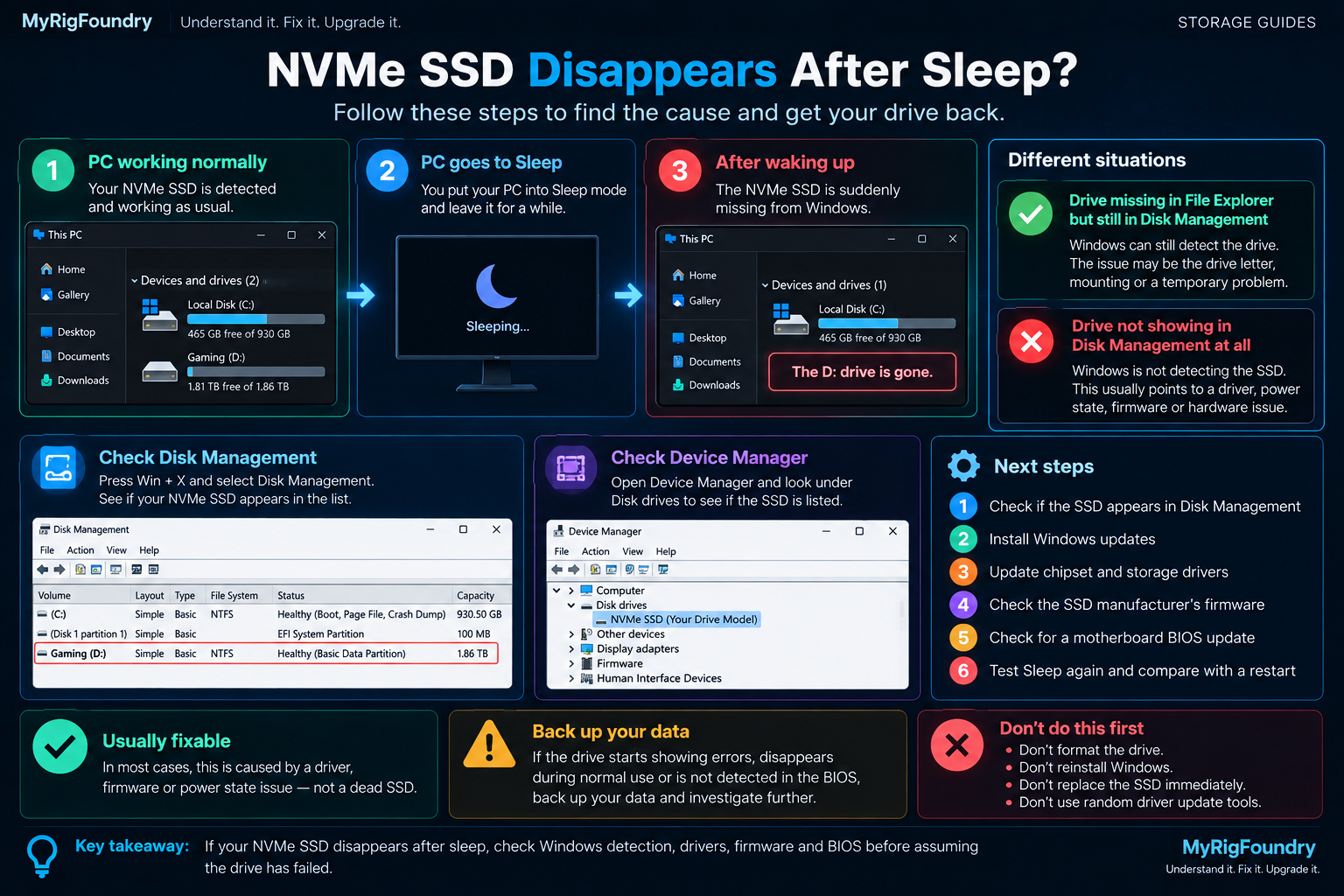
Confirm that Sleep is actually the trigger
Test the pattern deliberately.
Restart the PC and confirm the NVMe drive appears.
Then put the PC into Sleep.
Wake it and check again.
If you consistently get:
restart → SSD detected
sleep/wake → SSD missing
then you have isolated the power-state transition as the trigger.
Windows moves hardware through different power states when the system sleeps and wakes.
NVMe devices also support their own power states, so the drive and platform must successfully transition back into an operational state when the computer resumes.
Check Windows, chipset and storage updates
If the behavior is repeatable, check for Windows updates first.
Then identify your motherboard or system model and check the manufacturer’s official support page for relevant:
- chipset drivers
- storage drivers when applicable
- BIOS updates
- firmware updates
Do not download chipset or storage drivers from random driver websites.
Use Microsoft, the motherboard or system manufacturer, or the relevant hardware manufacturer.
Check the SSD manufacturer’s firmware
Identify the exact NVMe SSD model.
Then check whether its manufacturer provides an official SSD management or firmware tool.
Firmware updates can address device-specific compatibility and stability problems.
Do not install firmware intended for a different SSD model.
And because firmware updates involve the storage device itself, keep important files backed up before performing one.
Check your motherboard BIOS
The motherboard firmware participates in hardware initialization and platform power behavior.
If the problem began after:
- installing a new NVMe SSD
- changing motherboard settings
- updating Windows
- updating the BIOS
- changing other hardware
record that timing.
Then check the support page for your exact motherboard model.
Read BIOS release notes for relevant storage, PCIe, compatibility or stability changes.
Do not update the BIOS blindly or use firmware intended for a similar but different motherboard.
Compare Sleep with a normal restart
A simple comparison can tell you a lot.
Test:
Cold boot → SSD present
Restart → SSD present
Sleep → Wake → SSD missing
If only Sleep causes the failure, that is stronger evidence of a resume or power-state problem than a drive that simply fails randomly.
If the SSD also disappears during ordinary use or after a cold boot, broaden the investigation beyond Sleep.
When the SSD itself becomes more suspicious
The drive deserves deeper investigation if you also notice:
- disappearing during normal use
- file corruption
- read or write errors
- unexplained system freezes
- the SSD missing after a cold boot
- health warnings from the manufacturer’s diagnostic software
- the drive intermittently disappearing from the BIOS
At that point, the issue is no longer isolated to Windows Sleep.
Back up important data and investigate the SSD and its connection more seriously.
What not to do first
Do not immediately:
- format the SSD
- initialize a drive that already contains important data
- reinstall Windows
- replace the SSD
- change random registry settings
- apply undocumented power tweaks
- install generic driver-updater software
First determine whether the SSD disappears specifically during the Sleep and Wake transition.
Important: If Disk Management suddenly asks you to initialize a drive that previously contained data, do not blindly initialize or format it. Investigate the drive and protect important data first.
Quick troubleshooting flow
Use this order:
- Restart the PC and confirm the NVMe SSD appears.
- Put the PC to Sleep and wake it.
- Check whether the SSD disappears again.
- Before restarting, check Disk Management and Device Manager.
- Install relevant Windows updates.
- Check official chipset and storage drivers.
- Check the SSD manufacturer’s firmware.
- Review BIOS updates for your exact motherboard.
- Compare Sleep and Wake behavior with restart and cold boot.
- If the SSD also disappears outside Sleep, back up important data and investigate the hardware.
The key diagnostic clue
The most useful pattern is:
SSD works normally → PC sleeps → SSD disappears → restart restores it
That points toward the Sleep and Wake transition as an important part of the problem.
It does not prove whether the final cause is Windows, a driver, SSD firmware, motherboard firmware or the storage device itself.
But it gives you a much better starting point than immediately replacing hardware.
Official resources
- Microsoft Support — Disk Management in Windows
- Microsoft Learn — Power Management for Storage Hardware Devices
- Microsoft Learn — NVMe Power Management