Your Windows PC suddenly drops Wi-Fi, but your phone, TV, console, and other computers stay connected.
A few seconds later, reconnecting Wi-Fi — or disabling and enabling the adapter — may temporarily fix it.
That pattern is an important clue.
If other devices remain online when the PC disconnects, the entire internet connection is probably not going down. Start by investigating the connection between that PC and the Wi-Fi network.
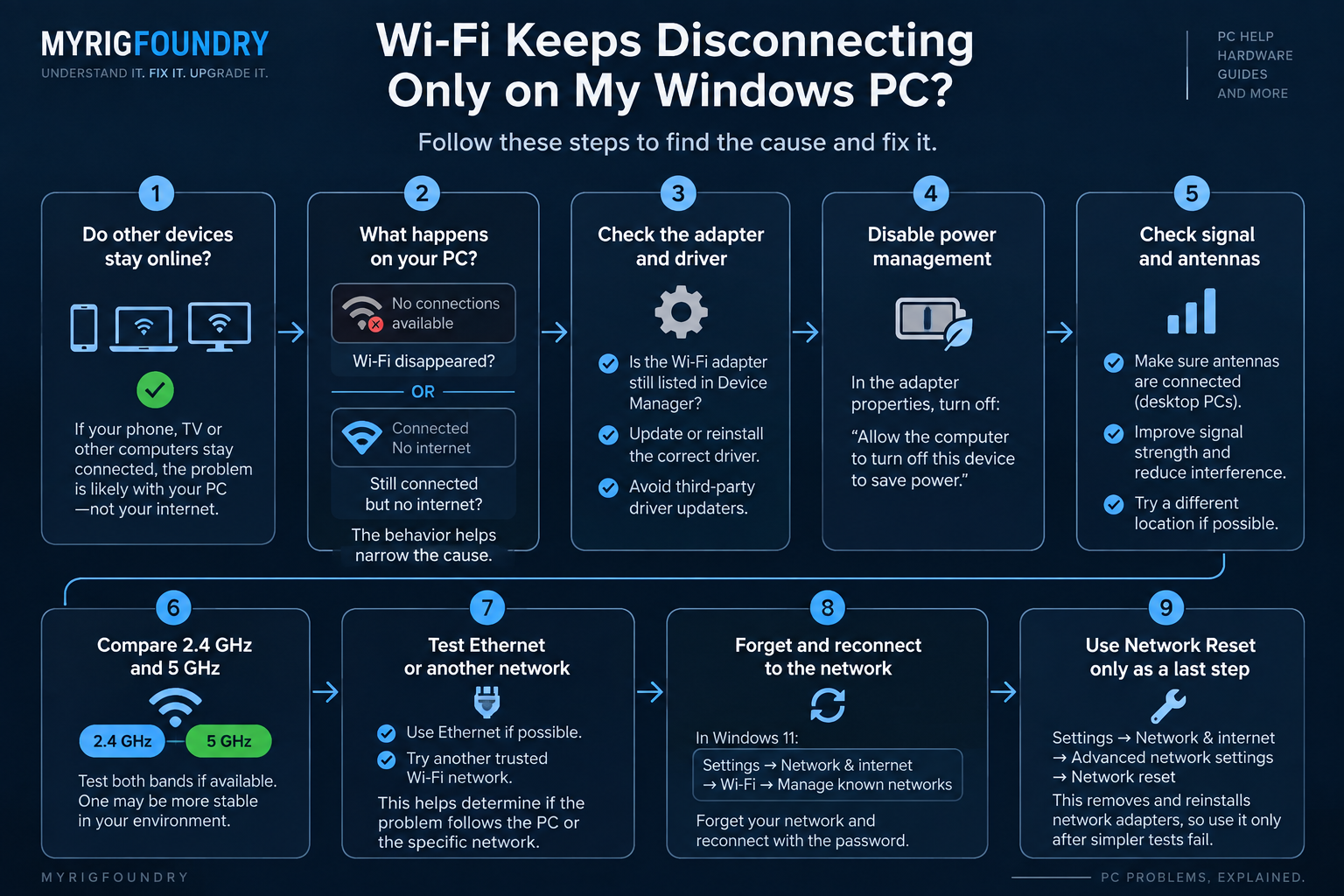
Quick answer
If Wi-Fi disconnects only on one Windows PC:
- Confirm other devices stay connected during the dropout
- Check whether the Wi-Fi adapter disappears or only loses the connection
- Disable Wi-Fi adapter power saving as a test
- Update or reinstall the correct Wi-Fi driver
- Check signal strength and antenna placement
- Compare 2.4 GHz and 5 GHz if both are available
- Test Ethernet or another trusted Wi-Fi network
- Use Windows Network Reset only after simpler tests fail
The most useful clue is what happens to the Wi-Fi adapter itself when the connection drops.
1. Confirm that only the PC disconnects
Wait until the problem happens again.
Before restarting the router, check another device connected to the same Wi-Fi.
Try loading a website or video on your phone.
If the phone also loses internet access at exactly the same time, the problem may involve the router, modem, or internet connection.
But if your phone continues working normally while the Windows PC disconnects, focus on the PC first.
This prevents you from repeatedly restarting a router that may be working perfectly.
2. Check what happens to the Wi-Fi adapter
There are several different symptoms that people describe as “Wi-Fi disconnecting.”
Pay attention to what Windows actually shows.
The network disconnects but Wi-Fi still exists
If Windows still shows available Wi-Fi networks, the adapter itself is probably still operating.
The PC may simply be losing its connection to your network.
The Wi-Fi option disappears
If the Wi-Fi button or available networks disappear completely, the adapter or its driver deserves more attention.
Open:
Device Manager → Network adapters
and check whether your wireless adapter is still listed.
If disabling and enabling the adapter immediately restores Wi-Fi, that is another useful diagnostic clue.
Windows stays connected but says “No internet”
That is a different symptom again.
The PC may still be connected to the local Wi-Fi network while losing internet connectivity.
Distinguishing these behaviors makes troubleshooting much easier.
3. Check Wi-Fi power management
Windows can allow the computer to turn off certain devices to save power.
For a Wi-Fi adapter, this can sometimes contribute to connection problems.
Open:
Device Manager → Network adapters
Right-click your Wi-Fi adapter and select:
Properties
If your adapter exposes a Power Management tab, look for:
Allow the computer to turn off this device to save power
Temporarily disable that option and test the PC normally.
Not every adapter or Windows configuration exposes exactly the same options.
The goal is to test whether power management is related to the disconnects — not to randomly change every power setting available.
4. Update the correct Wi-Fi driver
A driver problem can cause the adapter to behave incorrectly even when the router and internet connection are working normally.
First identify the exact Wi-Fi adapter:
Device Manager → Network adapters
Then check for an appropriate driver from:
- your PC manufacturer
- your motherboard manufacturer
- the Wi-Fi adapter manufacturer
Windows Update may also provide network driver updates.
Avoid third-party “driver updater” programs.
If the problem started immediately after a driver update, the timing itself is useful evidence.
If updating does not help, reinstalling the correct adapter driver can also be a reasonable test.
Make sure you know which driver your adapter requires before removing anything.
5. Check signal strength and desktop antennas
A PC-specific Wi-Fi problem is not always a Windows problem.
Desktop PCs commonly use:
- motherboard Wi-Fi
- PCIe Wi-Fi cards
- USB Wi-Fi adapters
If your motherboard or PCIe adapter came with external antennas, make sure they are connected.
A desktop sitting underneath a desk, next to a wall, or behind a metal PC case may receive a much weaker signal than a phone sitting on top of the desk.
That can explain why a phone appears perfectly stable while the PC repeatedly loses its connection.
If possible, temporarily move the antenna or PC and see whether the disconnect behavior changes.
6. Compare 2.4 GHz and 5 GHz
If your network provides multiple Wi-Fi bands, comparing them can reveal another clue.
In general:
2.4 GHz can travel farther and penetrate obstacles better, but it is often more crowded.
5 GHz can provide higher performance under good conditions but generally has less range through obstacles.
If the PC is far from the router, a weak 5 GHz connection may behave differently from 2.4 GHz.
Do not assume one band is universally better.
Test both under the same conditions if your router and adapter support them.
If one remains stable and the other disconnects repeatedly, you have narrowed the problem significantly.
7. Test Ethernet if possible
Connecting the same PC through Ethernet is an excellent comparison.
If Ethernet remains completely stable while Wi-Fi repeatedly disconnects, focus on:
- the Wi-Fi adapter
- Wi-Fi driver
- wireless signal
- antennas
- wireless configuration
If Ethernet also loses connectivity at the same time, the diagnosis becomes broader.
This test helps separate a wireless-specific problem from a system-wide networking problem.
8. Test another trusted Wi-Fi network
If practical, connect the PC to another trusted network.
The result gives you another useful comparison.
Disconnects on multiple Wi-Fi networks
The PC, adapter, driver, or Windows configuration becomes more suspicious.
Disconnects only on one Wi-Fi network
Compatibility, signal, band selection, or interaction between that adapter and router becomes more interesting.
One test does not prove the cause, but it helps determine where to investigate next.
9. Forget and reconnect to the network
Windows stores information about Wi-Fi networks you have previously connected to.
Removing the saved network and reconnecting is a simple test before using more disruptive reset options.
In Windows 11:
Settings → Network & internet → Wi-Fi → Manage known networks
Select your network and choose:
Forget
Then reconnect normally using the Wi-Fi password.
If the problem continues, move on rather than repeatedly forgetting and reconnecting to the same network.
10. Use Network Reset only as a later step
Windows includes a more aggressive networking reset.
In Windows 11:
Settings → Network & internet → Advanced network settings → Network reset
Network Reset removes installed network adapters and their settings. Windows reinstalls them after restart.
That is why this should not be the first troubleshooting step.
It may also require you to reinstall or reconfigure networking software such as VPN clients or virtual network adapters.
Use it after you have already tested the adapter, driver, power management, signal, and connection behavior.
When the Wi-Fi adapter itself becomes suspicious
Hardware becomes more interesting when:
- Wi-Fi disappears completely from Windows
- the adapter repeatedly disappears from Device Manager
- reinstalling the correct driver does not help
- the problem occurs across multiple Wi-Fi networks
- Ethernet remains perfectly stable
- antenna and signal problems have been ruled out
- the adapter behaves inconsistently even after Windows restarts
That still does not automatically prove the Wi-Fi card is defective.
But at this point, testing another known-good Wi-Fi adapter can provide useful evidence.
What not to do
Do not restart the router every time the PC disconnects if every other device remains online.
Do not install random driver-update utilities.
Do not change a dozen advanced adapter properties simultaneously.
Do not assume that faster Wi-Fi means a more stable connection.
And do not immediately replace your router because one computer is having trouble.
Troubleshooting becomes much faster when you determine whether the problem follows the PC, adapter, Wi-Fi band, network, or physical location.
Quick troubleshooting flow
Windows PC disconnects from Wi-Fi
↓
Do other devices disconnect too?
↓
No → Focus on the PC
↓
Does Wi-Fi disappear from Windows?
↓
Check adapter + driver
↓
Test power management
↓
Check signal + antennas
↓
Compare 2.4 GHz / 5 GHz
↓
Test Ethernet or another Wi-Fi network
↓
Forget and reconnect to the network
↓
Network Reset only if simpler tests fail
The key diagnostic clue
The fact that other devices stay connected is not proof that the router is perfect.
But it changes where you should start.
Instead of resetting everything in the house, determine exactly what the Windows PC does when the connection drops.
Does the network disappear?
Does the adapter disappear?
Does Windows remain connected but lose internet access?
Does Ethernet work perfectly?
Does another Wi-Fi network stay stable?
Those answers can turn “my Wi-Fi randomly disconnects” into a much smaller and more manageable problem.
Official resources
- Microsoft — Fix Wi-Fi connection issues in Windows
- Microsoft — Wi-Fi connection icons and what they mean