It sounds backwards: your PC can survive hours of gaming, but leave it sitting on the desktop for a while and it freezes.
This can happen because an idle PC is not simply doing “nothing.” When the system has little work to do, Windows and the hardware can enter lower-power states that are rarely used during gaming.
That makes an idle-only freeze an important diagnostic clue.
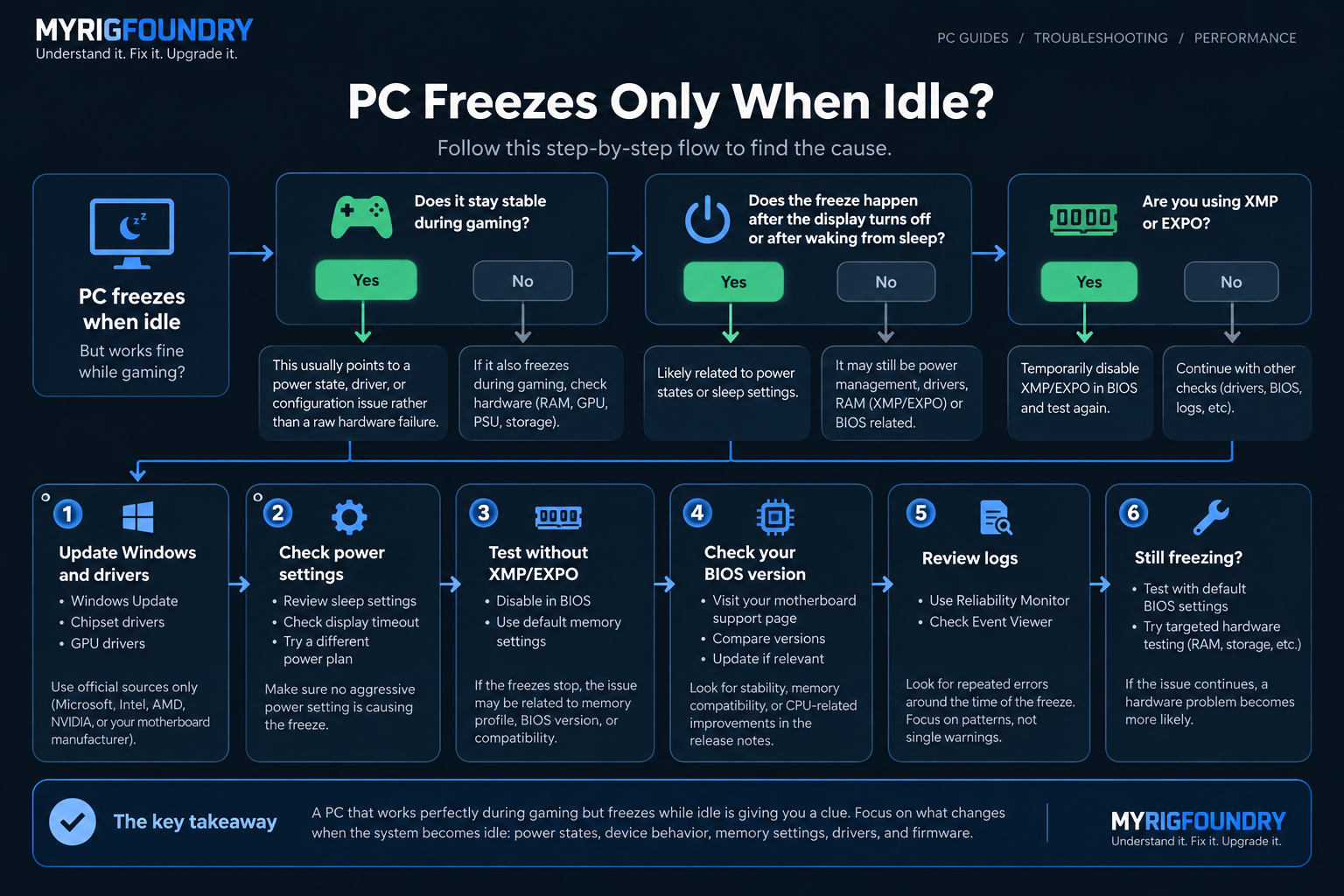
Quick answer
If your PC freezes only when idle but works normally while gaming, start by checking:
- Windows, chipset, and GPU driver updates
- Whether sleep or another power-state transition triggers the freeze
- XMP or EXPO memory settings
- BIOS and motherboard firmware
- Windows Reliability Monitor and Event Viewer
- Whether the problem also happens with default BIOS settings
Do not immediately assume that your GPU, CPU, or power supply is failing just because the entire PC freezes.
The fact that the machine remains stable during gaming can help narrow down the problem.
Why can a PC freeze while doing nothing?
Modern PCs constantly change their behavior depending on workload.
During gaming, the CPU and GPU generally remain active and consume more power. At the desktop, components can reduce clocks, voltage, and power consumption.
Windows may also place individual devices into lower-power states.
So the useful question is not:
“Why can’t my PC handle the load?”
It is:
“What changes when my PC becomes idle?”
That distinction can save a lot of unnecessary troubleshooting.
1. Check whether idle actually triggers the freeze
Before changing anything, try to reproduce the problem.
Restart the PC and use it normally for a while.
Then leave it sitting at the Windows desktop without launching a game or other demanding application.
If the freeze consistently appears after the computer has been inactive for a certain amount of time, that pattern matters.
Also pay attention to whether it happens:
- before the display turns off
- after the display turns off
- after waking the display
- after the PC enters sleep
- while the desktop is simply sitting untouched
Those are not necessarily the same problem.
For example, a PC that freezes immediately after waking from sleep should be investigated differently from one that freezes while it is still awake.
2. Update Windows, chipset, and GPU drivers
Start with the software and firmware that control communication between Windows and your hardware.
Check Windows Update first.
Then check for current chipset drivers from AMD, Intel, or your motherboard manufacturer, depending on your system.
You should also verify that your graphics driver is current.
This matters because an idle-only problem can involve transitions between different device or power states rather than raw performance.
Avoid installing random “driver updater” programs.
Use Windows Update and the official manufacturer websites instead.
3. Test without XMP or EXPO
If XMP or EXPO is enabled, temporarily disabling it is a useful diagnostic test.
XMP and EXPO allow memory to run using performance profiles instead of the motherboard’s default memory settings.
A system can sometimes appear stable during normal use while still having a configuration problem that only shows up under particular conditions.
Enter the BIOS/UEFI, disable XMP or EXPO, and test the PC at default memory settings.
If the idle freezes disappear, you have learned something important.
That does not automatically mean the RAM is defective.
The issue could involve the memory profile, BIOS version, motherboard compatibility, or another memory-related setting.
4. Check your BIOS version
BIOS updates can include fixes for memory compatibility, CPU behavior, system stability, and power management.
Check your motherboard manufacturer’s support page and compare the installed BIOS version with the versions available for your exact motherboard model.
Do not install a BIOS made for a similar-looking motherboard.
The exact model matters.
If the manufacturer specifically mentions stability, memory compatibility, or CPU-related improvements in newer releases, an update may be relevant.
BIOS updates should still be treated carefully. Follow the motherboard manufacturer’s instructions rather than using an unofficial flashing method.
5. Look at Windows Reliability Monitor
Reliability Monitor can provide a much cleaner timeline than immediately digging through hundreds of Event Viewer entries.
Search Windows for:
View reliability history
Look around the time of the freeze for critical events, application failures, Windows failures, or hardware-related errors.
One important limitation: if the PC completely locks and you force it off with the power button, Windows may only record the unexpected shutdown afterward.
That does not necessarily tell you what originally caused the freeze.
Still, repeated events immediately before the freezes can provide useful clues.
6. Check Event Viewer
If Reliability Monitor does not reveal anything useful, check Event Viewer.
Look around the approximate time when the freeze happened rather than trying to fix every warning in the log.
Windows PCs routinely generate warnings and errors that have nothing to do with the problem you are investigating.
You are looking for a repeatable pattern associated with the freeze.
For example, repeated driver or hardware-related errors immediately before every lockup deserve more attention than an unrelated warning that occurred hours earlier.
7. Test default BIOS settings
If you have changed CPU, RAM, voltage, overclocking, undervolting, or power-related BIOS settings, temporarily testing the system at default settings can be extremely useful.
The goal is not to permanently give up your configuration.
It is to establish a baseline.
If the PC stops freezing at default settings, reintroduce your changes one at a time.
That is much more useful than changing five settings simultaneously and hoping the problem disappears.
8. Compare idle, sleep, restart, and gaming behavior
At this point, write down what actually happens.
| Situation | Result |
|---|---|
| Gaming for an hour | Stable / Freezes |
| Sitting at desktop | Stable / Freezes |
| Display turns off | Stable / Freezes |
| Waking from sleep | Stable / Freezes |
| After restart | Stable / Freezes |
| Default BIOS settings | Stable / Freezes |
| XMP/EXPO disabled | Stable / Freezes |
This simple comparison can reveal more than repeatedly reinstalling drivers.
If gaming is consistently stable but the PC freezes only after entering an idle or sleep-related state, power-state behavior becomes a much stronger lead.
If the machine begins freezing under load too, the diagnosis becomes broader.
When hardware might actually be the problem
Idle-only freezing does not rule out hardware problems.
RAM instability, motherboard issues, storage problems, or other hardware faults can still produce inconsistent freezes.
Hardware becomes more suspicious if:
- freezes begin happening during gaming too
- the system produces hardware-related errors
- memory tests report errors
- the PC freezes even with BIOS defaults
- the problem continues after drivers and firmware are updated
- crashes become progressively more frequent
At that point, testing individual components becomes more reasonable.
The key is to gather evidence before replacing parts.
What not to do
Do not immediately buy a new GPU or power supply because someone with a similar PC fixed their freeze that way.
Do not copy random CPU voltage values from a forum post.
Do not change several BIOS settings at the same time.
And do not assume every Event Viewer warning is the cause.
Idle-only freezes can have multiple causes, so the fastest troubleshooting method is usually controlled testing: change one meaningful variable, reproduce the idle condition, and compare the result.
Quick troubleshooting flow
PC freezes only when idle
↓
Check Windows, chipset, and GPU updates
↓
Determine whether display-off or sleep triggers it
↓
Test with XMP/EXPO disabled
↓
Check motherboard BIOS updates
↓
Review Reliability Monitor and relevant Event Viewer entries
↓
Test with default BIOS settings
↓
If freezes continue, begin targeted hardware testing
The key diagnostic clue
A PC that works perfectly during gaming but freezes while sitting at the desktop is giving you useful information.
Heavy load is not necessarily the trigger.
Focus first on what changes when the computer becomes idle: power behavior, device states, memory configuration, drivers, and firmware.
That approach is far more useful than replacing expensive components at random.