You start downloading a large game and notice something strange.
The download speed suddenly drops, Task Manager shows the SSD at 100% active time, and the process may alternate between downloading quickly and slowing almost to a stop.
That does not automatically mean your SSD is failing.
Game launchers such as Steam do more than simply transfer data from the internet. Downloaded data may also need to be written, unpacked, verified, and installed.
If storage cannot process that work as quickly as the internet connection supplies new data, the SSD can become the bottleneck.
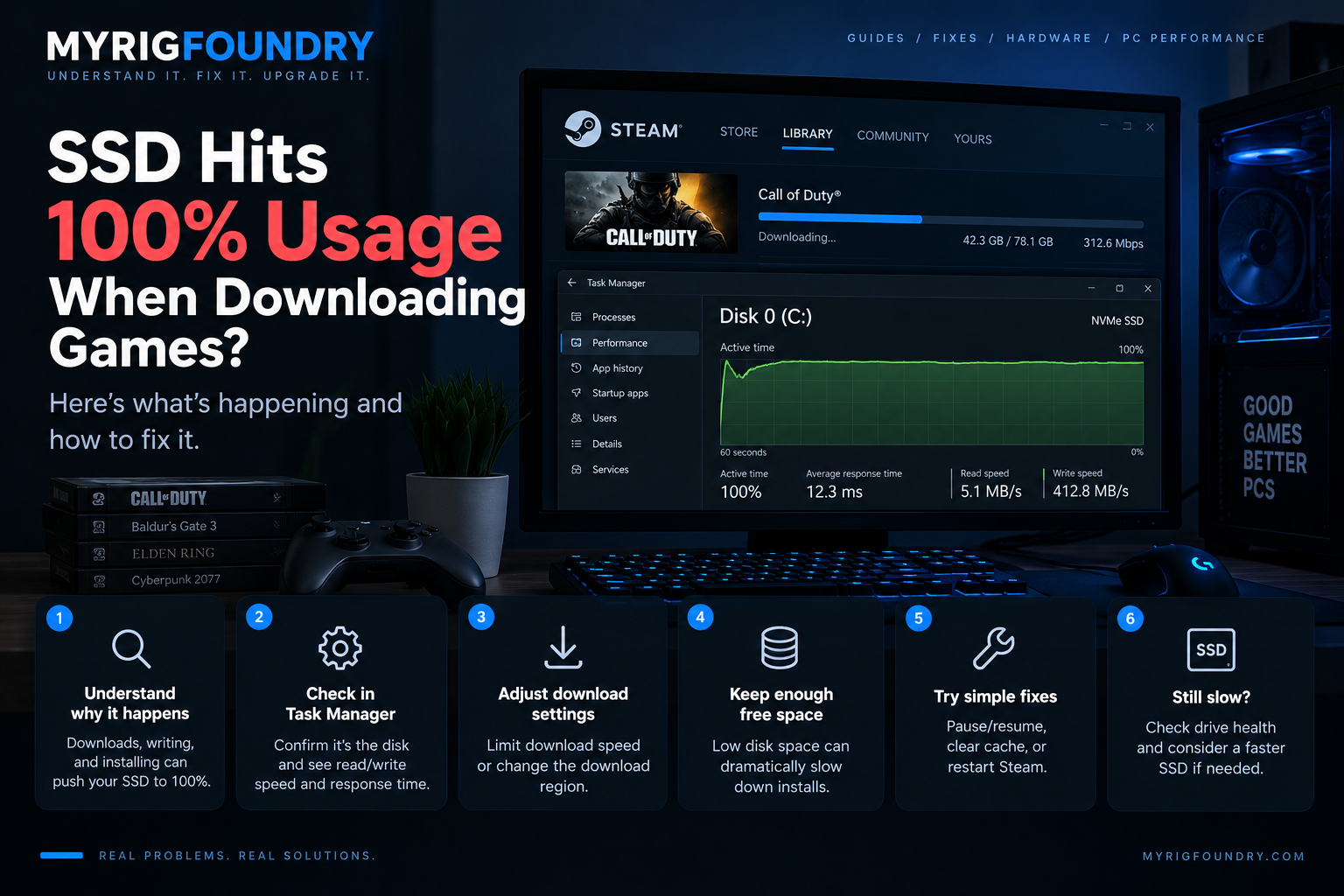
Quick answer
If your SSD reaches 100% usage while downloading games:
- Check Task Manager to confirm which process is using the disk
- Compare disk active time with actual read and write speeds
- Watch whether download speed falls while disk activity rises
- Make sure the SSD has enough free space
- Check whether the launcher is downloading or installing/unpacking
- Pause and resume the download as a simple test
- Restart the launcher or PC if the behavior appears abnormal
- Check drive health if high disk usage also happens outside game downloads
The most important thing to understand is that 100% active time does not mean the SSD is necessarily reaching its advertised maximum sequential speed.
The drive can be fully occupied by a workload even when the MB/s number appears surprisingly low.
Why game downloads can push an SSD to 100%
Downloading a modern PC game involves several different operations.
The launcher may need to:
- receive compressed data from the internet
- write that data to storage
- unpack downloaded files
- modify existing game files
- verify downloaded data
- move temporary files
- install updates
Some of these operations can happen simultaneously.
That means your network connection and SSD are effectively working together.
If the internet delivers data faster than the storage system can process it, the launcher may temporarily reduce or pause network activity while the disk catches up.
This can create a pattern such as:
Fast download → SSD reaches 100% → download slows → disk processes data → download speeds up again
That pattern alone does not prove there is a hardware problem.
1. Check Task Manager
Start with:
Task Manager → Performance → Disk
Watch:
- Active time
- Average response time
- Read speed
- Write speed
Then check:
Task Manager → Processes
Sort by the Disk column.
This helps determine whether Steam or another game launcher is actually responsible for the disk activity.
If another application is consuming the drive at the same time, the game download may only be part of the workload.
2. Do not judge the SSD only by active time
This is an important distinction.
You might see:
Active time: 100%
while the drive is transferring far less data than the maximum speed advertised by the manufacturer.
That can happen because SSD performance depends heavily on the type of workload.
Large sequential transfers are different from workloads involving many smaller operations, file extraction, metadata changes, temporary files, and simultaneous reads and writes.
So:
100% active time ≠ maximum advertised MB/s
Task Manager is telling you that the drive is fully occupied, not necessarily that it is performing one ideal sequential transfer.
3. Compare disk activity with download speed
Open your game launcher and Task Manager side by side.
Watch what happens when the download slows.
If you see:
Network activity falls
while:
SSD active time rises
the storage workload may be limiting how quickly the launcher can continue processing downloaded data.
This is especially useful when the pattern repeats throughout a large installation.
The launcher may not be continuously downloading.
It may alternate between downloading and processing files.
4. Check whether the launcher is actually installing
A game launcher may display several different activities during what appears to be one download.
Depending on the launcher and game, it may be:
- downloading
- installing
- patching
- unpacking
- verifying
Steam, for example, can show separate network and disk activity.
If network usage drops while disk usage remains high, the launcher may simply be processing the files it has already downloaded.
Wait and observe the pattern before assuming something has failed.
5. Make sure the SSD has enough free space
Very low free space can make storage management more difficult and can reduce performance on some SSDs.
Check:
Settings → System → Storage
or:
File Explorer → This PC
Look at how much space remains on the drive containing the game library.
If the SSD is nearly full, freeing space is worthwhile even if it is not the only cause of the problem.
Large games can also require temporary working space during installation or updates.
The required space may therefore be greater than the final installed size of the game.
6. Pause and resume the download
A simple comparison can sometimes tell you more than immediately changing Windows settings.
Pause the game download.
Wait several seconds.
Watch Task Manager.
If disk activity gradually returns to normal, that strongly connects the high usage to the game installation workload.
Resume the download and watch whether the same pattern returns.
This does not fix an underlying bottleneck, but it helps identify what is causing the activity.
7. Restart the launcher
If disk activity appears stuck rather than simply busy, restart the game launcher.
Close it normally and verify that it is no longer running.
Then reopen it and resume the download.
If the behavior was caused by a temporary launcher problem, this may restore normal operation.
If the exact same pattern immediately returns, continue investigating rather than repeatedly restarting the application.
8. Restart Windows if the behavior looks abnormal
A Windows restart is another simple diagnostic step.
This clears temporary processes and gives you a clean comparison.
After restarting:
- Open Task Manager
- Check disk activity before opening the launcher
- Open the launcher
- Resume the game download
- Compare the behavior
If the SSD is quiet before the download and immediately becomes saturated when downloading resumes, you have established a much clearer connection between the workload and the disk activity.
9. Check for other disk-heavy applications
Game installation may not be the only process using your SSD.
Look for:
- Windows Update
- antivirus scanning
- cloud synchronization
- file transfers
- backup software
- another game launcher
- other installations or updates
Multiple storage-heavy processes running simultaneously can make the SSD much easier to saturate.
Task Manager can help identify these competing workloads.
10. Consider the type of SSD
Not every SSD performs the same way.
Differences can include:
- SATA versus NVMe
- controller design
- NAND type
- cache behavior
- drive capacity
- temperature
- available free space
A fast internet connection can expose storage limitations that were much less noticeable on a slower connection.
For example, upgrading your internet speed does not automatically make the SSD capable of processing downloaded game data at the same increased rate.
At some point, storage or CPU processing can become the new bottleneck.
What about download speed limits?
If your internet connection consistently overwhelms the storage workload, temporarily limiting download speed can sometimes make the process behave more consistently.
This does not make the SSD faster.
It simply reduces how quickly new data arrives while the drive is also processing existing data.
Before using a permanent limit, however, determine whether the behavior is actually causing a problem.
An SSD reaching high utilization during a large installation is not automatically something that needs to be “fixed.”
When SSD health becomes more suspicious
High disk usage during a large game installation is very different from unexplained high disk usage all the time.
Investigate the drive more carefully if:
- the SSD reaches 100% while the PC is genuinely idle
- normal applications frequently freeze because of disk activity
- file transfers are unexpectedly slow outside game launchers
- Windows repeatedly reports storage errors
- the drive disappears intermittently
- the system has trouble reading files
- high response times occur during ordinary light workloads
At that point, checking drive health and manufacturer diagnostics becomes more relevant.
What not to do
Do not assume 100% active time means the SSD is broken.
Do not compare Task Manager directly with the maximum sequential speed printed on the SSD box.
Do not disable random Windows services just because an online guide claims they cause 100% disk usage.
Do not install questionable “SSD optimizer” software.
And do not replace a drive before determining whether the high usage happens only during heavy game installations.
Context matters.
Quick troubleshooting flow
SSD reaches 100% while downloading a game
↓
Open Task Manager
↓
Is the game launcher causing the disk activity?
↓
Compare network activity with disk activity
↓
Check whether the launcher is downloading or processing files
↓
Check available free space
↓
Pause/resume the download
↓
Restart the launcher if behavior appears stuck
↓
Check for competing disk-heavy processes
↓
Does 100% usage also happen outside game downloads?
↓
Yes → Investigate SSD health and broader Windows/storage issues
The key diagnostic clue
The most useful question is not:
“Did my SSD reach 100%?”
Instead ask:
“When does my SSD reach 100%?”
If it happens only while downloading, unpacking, patching, or installing a massive game, the drive may simply be processing a demanding storage workload.
If the SSD remains saturated during ordinary desktop use with no obvious disk-heavy process, that is a different problem and deserves separate investigation.
Understanding that difference prevents normal heavy storage activity from being mistaken for immediate SSD failure.